How to add a banner image for mobile
- Log in to your Shopify store
- Go to Settings, located at the bottom of the Admin panel located on the left side of the page
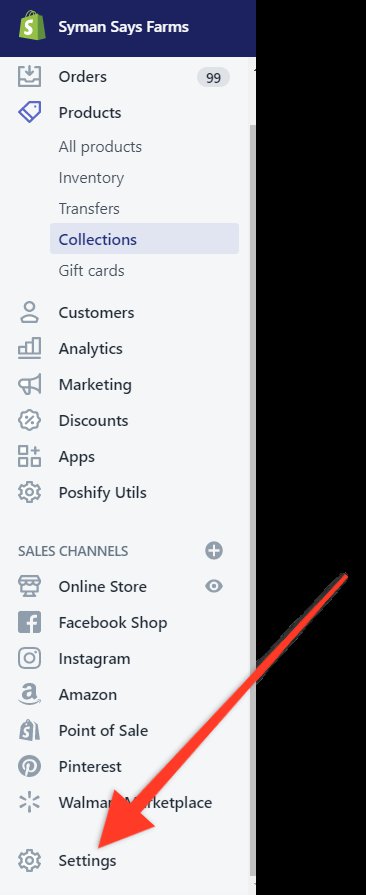
- Click Files from the available links
-b89c66fd4ecb9c02faabdc932a5b0497.png)
- Add new image file then copy the entire name of the file, in this example it would be “Mobile-Soap-Banner2_1.jpg”
-e4daae047bec3ff56a1b24692e02cc32.png)
- Select Products from the Admin panel on the left hand side
-be129836ba08dce1ac275241e3f2f843.png)
- Click on Collections that is listed under Products
-cb26fdfd0a58b0cf9a3c22dfbb241047.png)
- Select the desired collection
- After the desired collection page has been opened click on Poshify Utils from the Admin panel on the left side of page
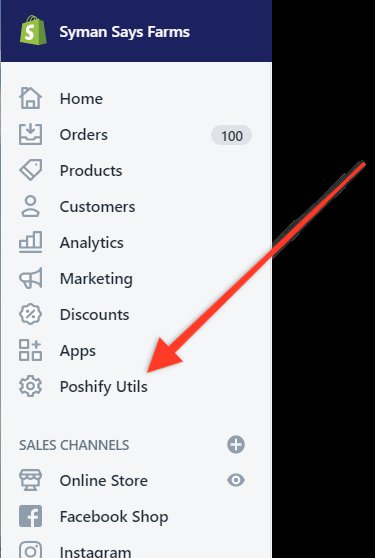
- On the page that is opened click Metafield Editor
-31322c501ed7eefaa133f808e1a988c0.png)
- Click Current Resource
-a1c935d00ead5abae217d2c60c033654.png)
- Click Create new metafield
- In the text box Namespace add “global”
- In the Key text box add “mobile-header”
- Add the name of the file that was uploaded to the Value text box, in this example it’s “Mobile-Soap-Banner2_1.jpg”.
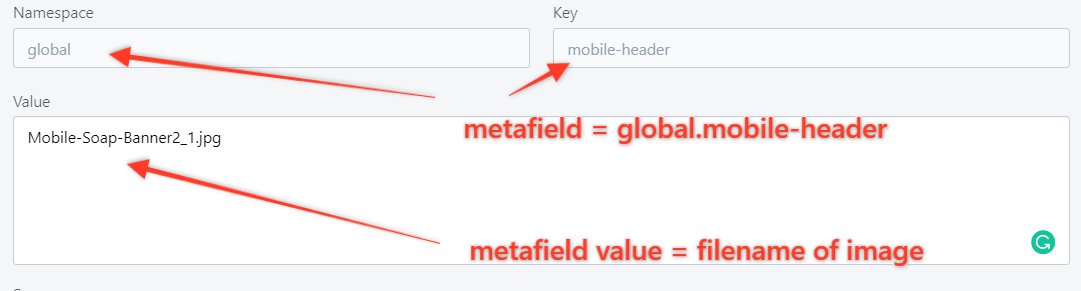
- Click Update then close the popup window and exit out of Poshify Utils
- Verify that the mobile image was correctly added to the page.