Icons on PDP Configuration
The icons on the PDP are controlled by tags - here is a list below of all the current tags that can be displayed on the PDP
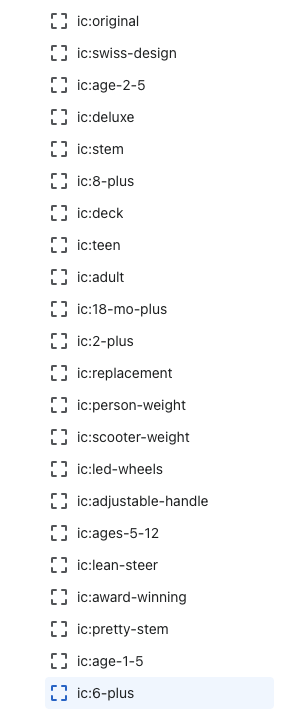
I have created the tag ic:6-plus for the new 6+ icon.
For any new icon in the future, just need to include ic: in the product tag, anything after can be whatever to indicate what the icon is.
The next step is: to add it in the theme customizer. Go to Products in the dropdown > default product.
Select the PRODUCT PAGES section, then you will see the same list as above. To add a new icon, select ADD PRODUCT ICONS

To set up the new icon, you will have to add the following
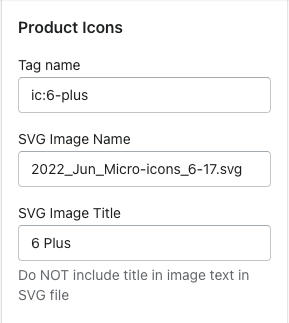
Tag name - the product tag you created
SVG Image Name - copy the file name exactly how it was uploaded into the files section with .svg a the end (NOTE - THE ICON DOES HAVE TO BE A SVG FILE FORMAT)
SVG Image Title - this is where you will enter the text that will output on the PDP underneath the icon
Final Result

This functionality works the SAME way for the wholesale site. The same steps can be followed