How to Use ManyCam for Zoom
To start, sign in to you Zoom account https://zoom.us/
Next, navigate to Zoom settings, found on the top, right-hand side of your screen below your “Available" notification\

Click on the “VIDEO” tab, then under the Camera drop-down select “ManyCam Virtual Webcam"
- Turn on "Enable HD"
- Turn off “Mirror my video“
Next, click on the “Audio” tab and select “ManyCam Virtual Microphone” as Microphone.
To start a New Meeting:
Log into Zoom
Select the “New Meeting” orange icon\
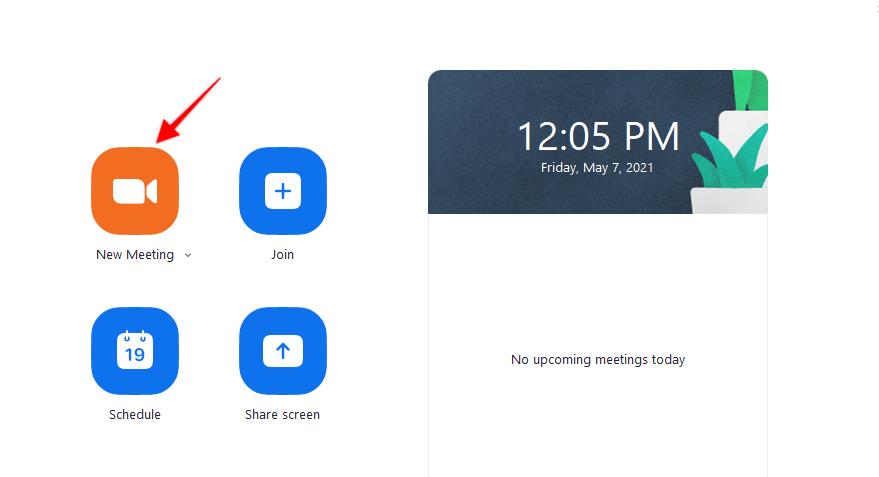
This will open up the ManyCam application with your settings you selected above
Open ManyCam and here you will have the ability to crop your screen.
To access the feature, click on the Crop icon as shown below:

Here you can select the crop mode and adjust the crop area.
The crop modes are:
- Fit – Changes the image’s size to fit in the given width & height while retaining original proportions.
- Fill – Creates an image with the exact given width and height while retaining original proportions.
- Fit to height – Changes the image proportions to fit in the given height.
- Fit to width – Changes the image proportions to fit in the given width.
- Stretch – Changes the image proportions to fit in the given width & height.
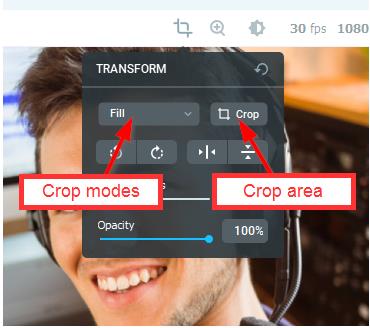
To adjust the crop area, click the Crop icon (see the image above) and resize the area as shown below. Once the area is adjusted, click “Apply Crop”.

You’ll be able to see the changes immediately on your Zoom meeting screen.