Funnels & Settings Validation Checklist
a. Data Streams:
Ensure that the data stream associated with your website or app is properly set up and receiving data. Check that the data stream is active and connected to the correct data source.
Checked - All in order.
b. Conversion Events:
Verify that all the necessary conversion events are set up correctly. Check if the events are tracking the specific actions or goals you want to measure. Ensure that the event names, parameters, and conditions are accurately configured.
Checked:
- conversion is tracking. 6 conversions currently showing. See screen grab below
- Purchase conversion seems de-active. Please advise.
-a689a8a6a48b0249f41dafc7d58aa91b.png)
c. Enhanced Measurement:
- Review the enhanced measurement settings and ensure that the relevant options are enabled.
- These settings automatically capture additional data without requiring manual event implementation.
- Validate that the desired enhanced measurement features such as scroll tracking, outbound link tracking, or video engagement tracking are working as expected.
Checked:
- Enhanced measurement in place for page views, scrolls, outbound clicks, site search, video engagements, file downloads and form interactions. See screen grab below.
- Please advise if more elements should be added.
-f1868d6454b69ae360f8d6eab84314bb.png)
d. User Properties:
- If you want to collect and analyze additional user-related information, configure the relevant user properties.
- Check that the user properties are correctly defined and capturing the intended data.
Checked:
- User attributes overview shows thresholding across all attributes.
- See screen grab below.
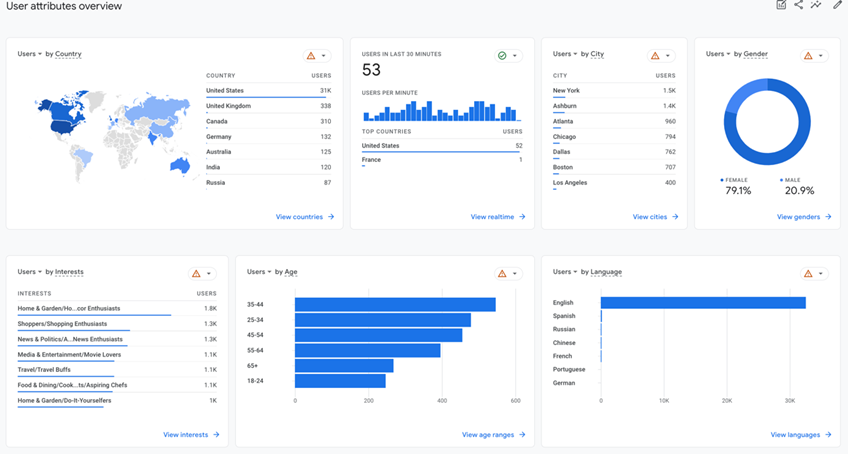
e. Data Settings:
- Review the data retention settings and other data-related configurations as needed.
- Verify that the retention period aligns with your data retention requirements.
- Double-check any data filters, exclusions, or sampling settings that may impact your data accuracy.
Checked:
- Data collection, all appears in order.
-13dba6c177c1b4ef82b622bc1aa7fdb6.png)
- Data retention is set to two months, please advise if it set should be set to 14 months.
- Data filters are tracking internal traffic and is currently testing.
4.1 Validate Funnels:
a. Log in to your Google Analytics account.
b. In the Google Analytics dashboard, navigate to the GA4 property that was migrated.
c. Click on the "Explore" option in the left-hand menu.
d. Within the "Explore" section, you'll find various analysis options to explore your GA4 data.
Checked:
- Funnel exploration is showing the following;
- Step 1: first open/ visit
- Step 2: session start
- Step 3: Screen/page
- Step 4: Purchase
See screen grab below;
-465cc7467a7bfa6add02f77a587320d0.png)
5. To validate data flow and check events:
a. Perform actions on your website or app that should trigger the defined events.
b. After performing actions, go back to the GA4 property.
c. In the left-hand menu, click on "Events" under the "Explore" section.
d. Verify that the events and conversions you expect to see are correctly recorded and displayed in the reports.
e. Compare the recorded data with your expectations to ensure data accuracy and consistency.
Checked:
- In real time
- Everything seems to be firing and triggering as expected.
6. Validate Existing Data:
a. Review the historical data in the GA4 reports and compare it with the data in the previously used Universal Analytics (GA3) property, if applicable.
b. Check if the existing data in GA4 matches the data that was collected and reported in GA3.
c. Look for any discrepancies or differences that may require further investigation.