🍏 Publish on IOS
Step 1 - Open App Store Connect
- Click the link and begin the sign in process.
- Once logged in, minimize the tab and continue to the next step.
Step 2 - Open Xcode
- Open up the Xcode application on your computer.
- Open the xcodeworkspace file for the app
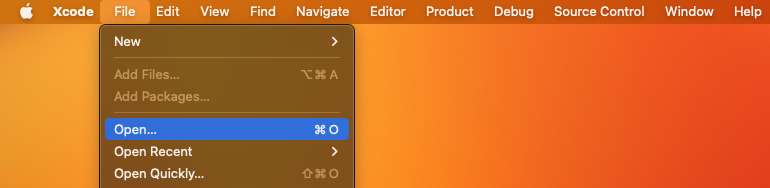 Open a project in Xcode
 Select Workspace file in finder
Step 3 - Xcode Configuration
- In Xcode, in the top bar where the current device selected is, click to expand list view and select "Any iOS Device (arm64)"
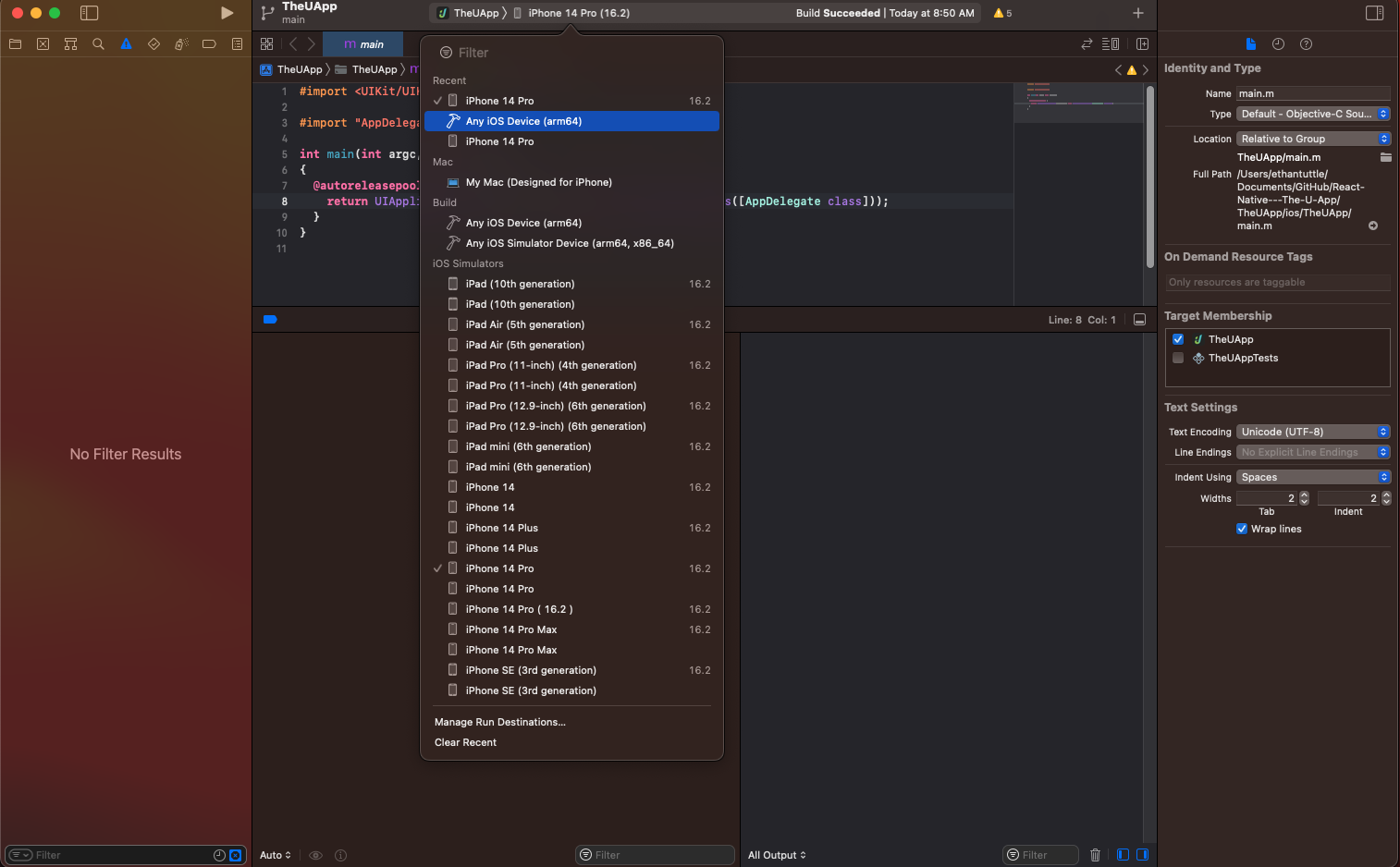 Select Device List View
- In VSCode, open .../React-Native---The-U-App/TheUApp/ios/TheUApp/Info.plist
- Modify the version number to the current version
<key>CFBundleShortVersionString</key>
<string>VERSION NUMBER HERE</string>
...
<key>CFBundleVersion</key>
<string>VERSION NUMBER HERE</string>
Step 4 - Archive the Project
- In Xcode, select Projects -> Archive
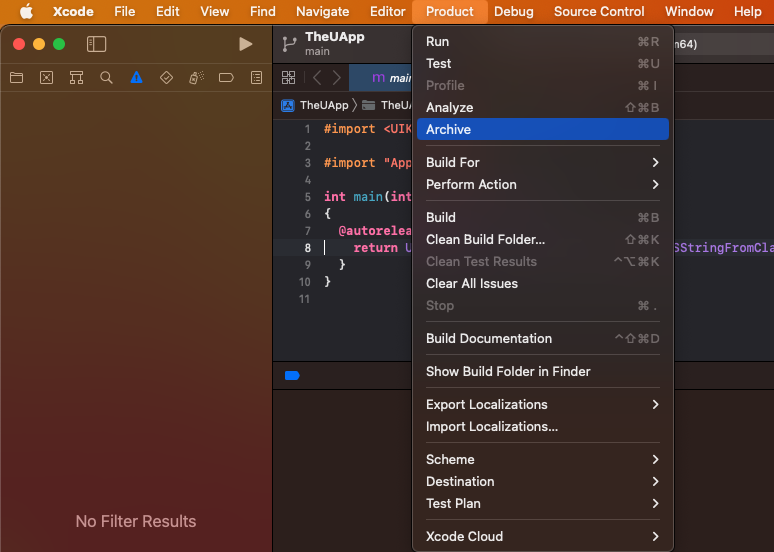 Run Archive
Step 4a - Codesign Access
- Skip this step if you have already run this process at least once.
- Keep typing in password to allow access until prompt is done popping up
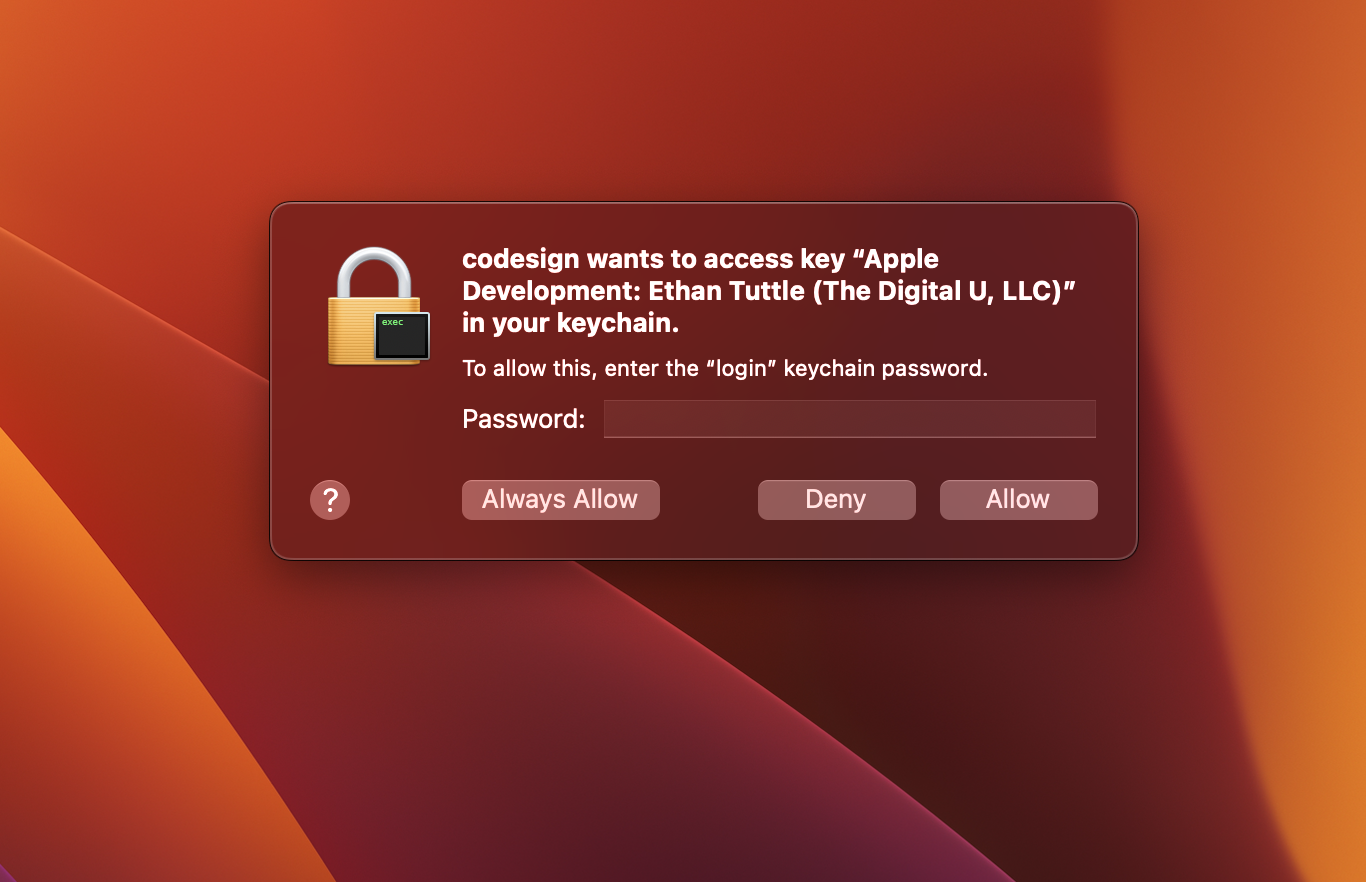 codesign access on first run
Step 4b - Select the latest build
- Click build with latest archive date
- Click Distribute App Button
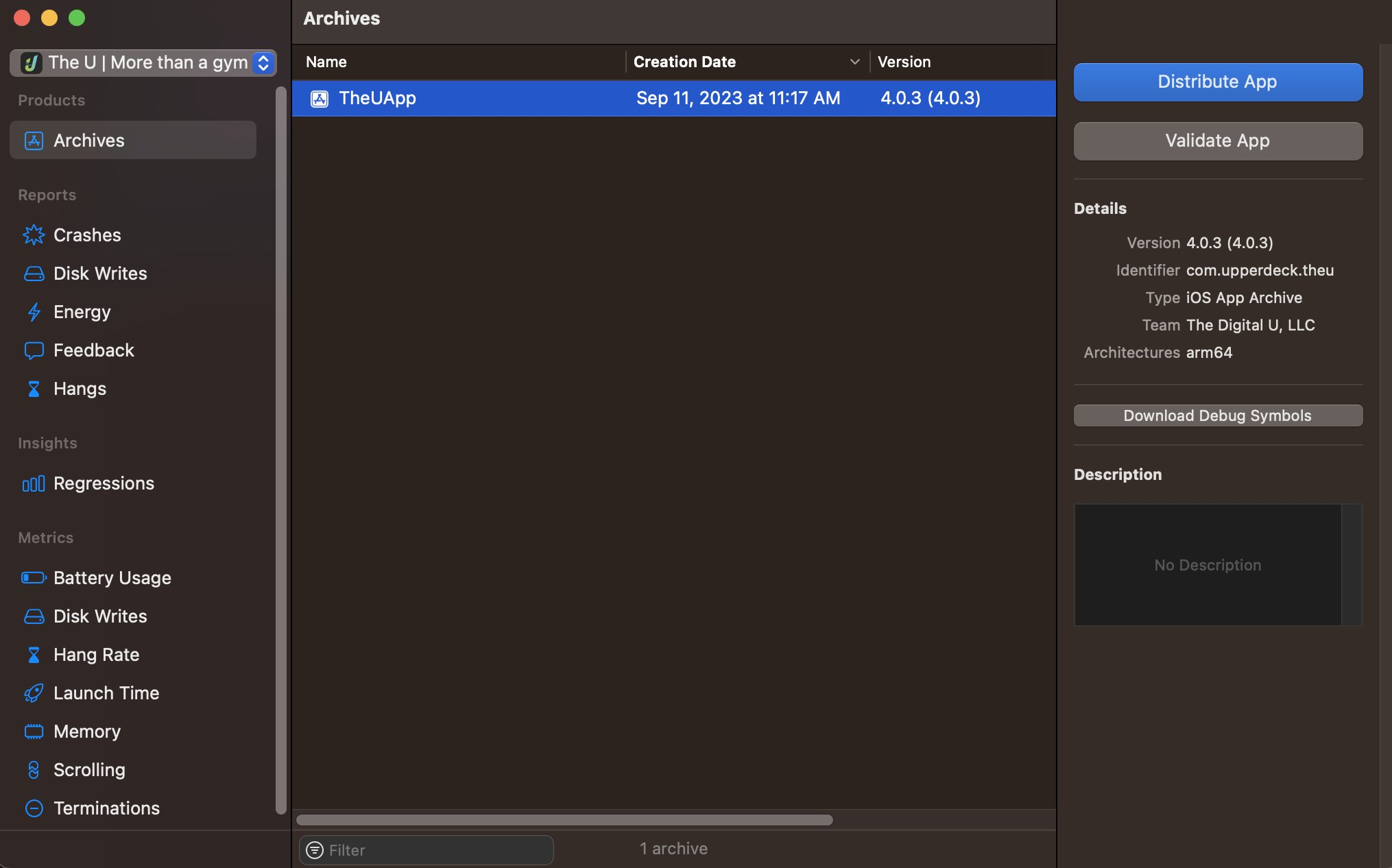 Select Archive Version
Step 4c - Select the Method of Distribution
- Click "App Store Connect" Radio Button
- Click Next Button
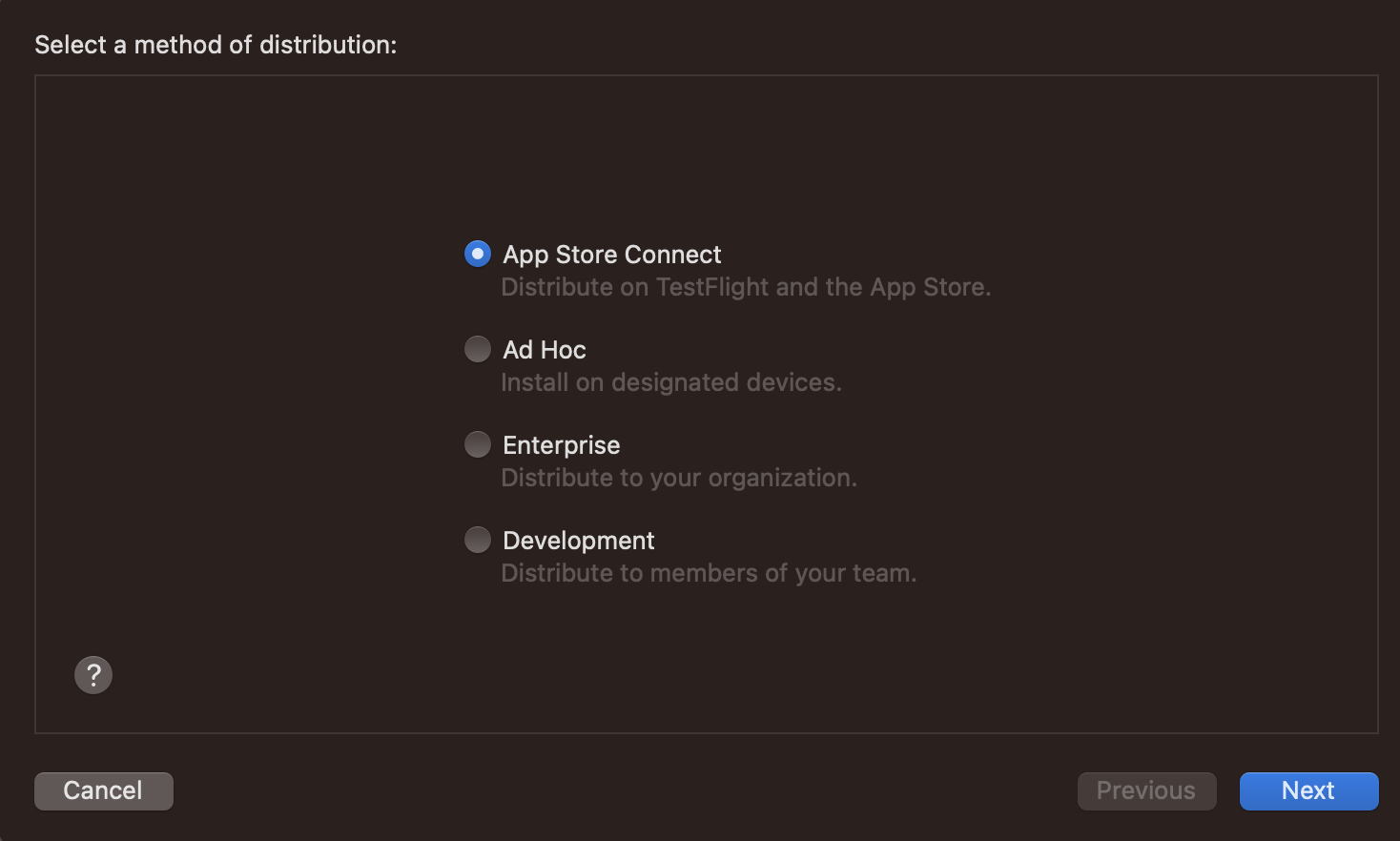 Method of Distribution
Step 4d - Destination
- Click "Upload" Radio Button
- Click Next Button
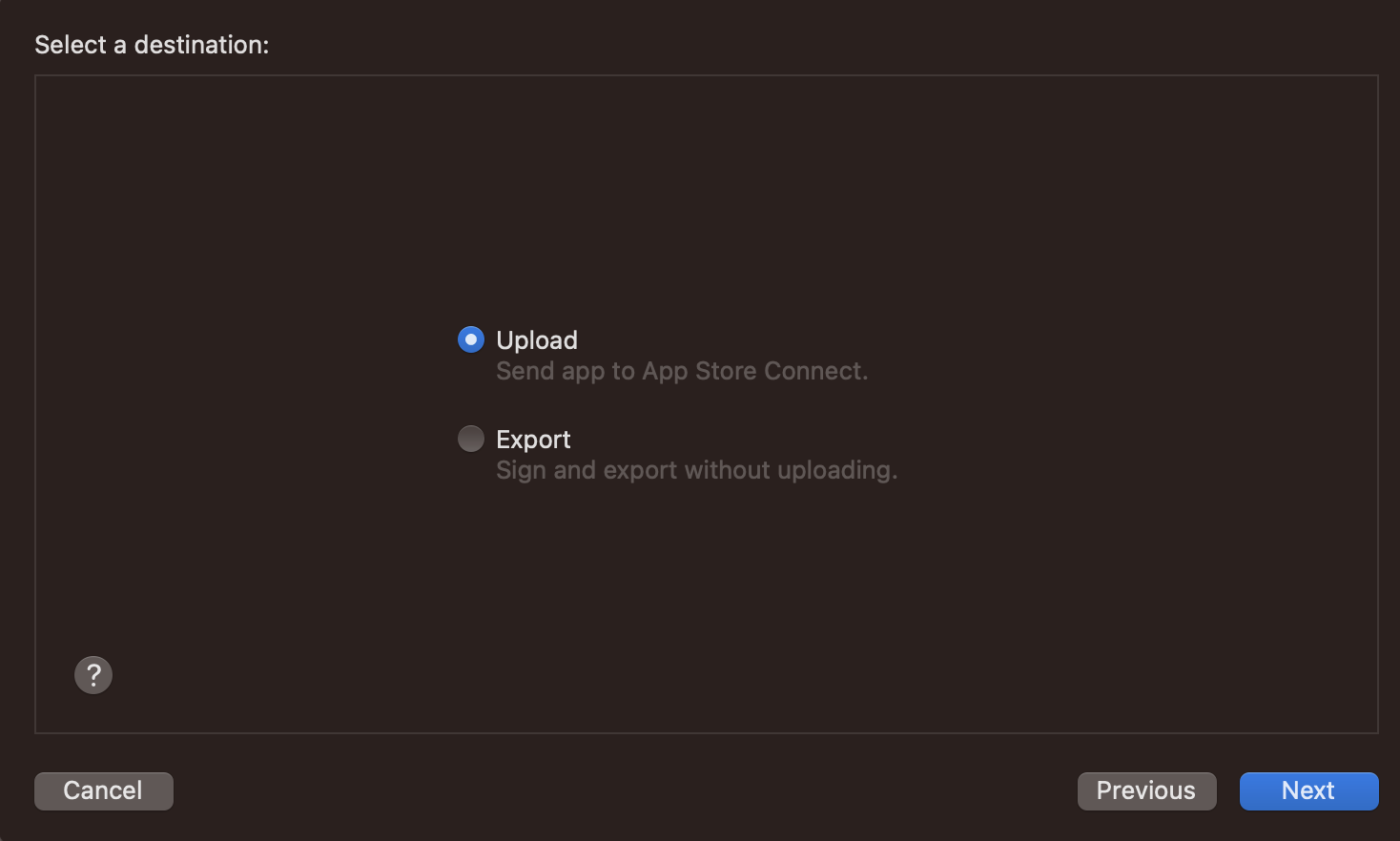 Destination Options
Step 4e - Distribution Options
- Make sure the following boxes are checked:
- Strip Swift Symbols
- Upload your app's symbols
- Manage Version and Build Number
- Click Next Button
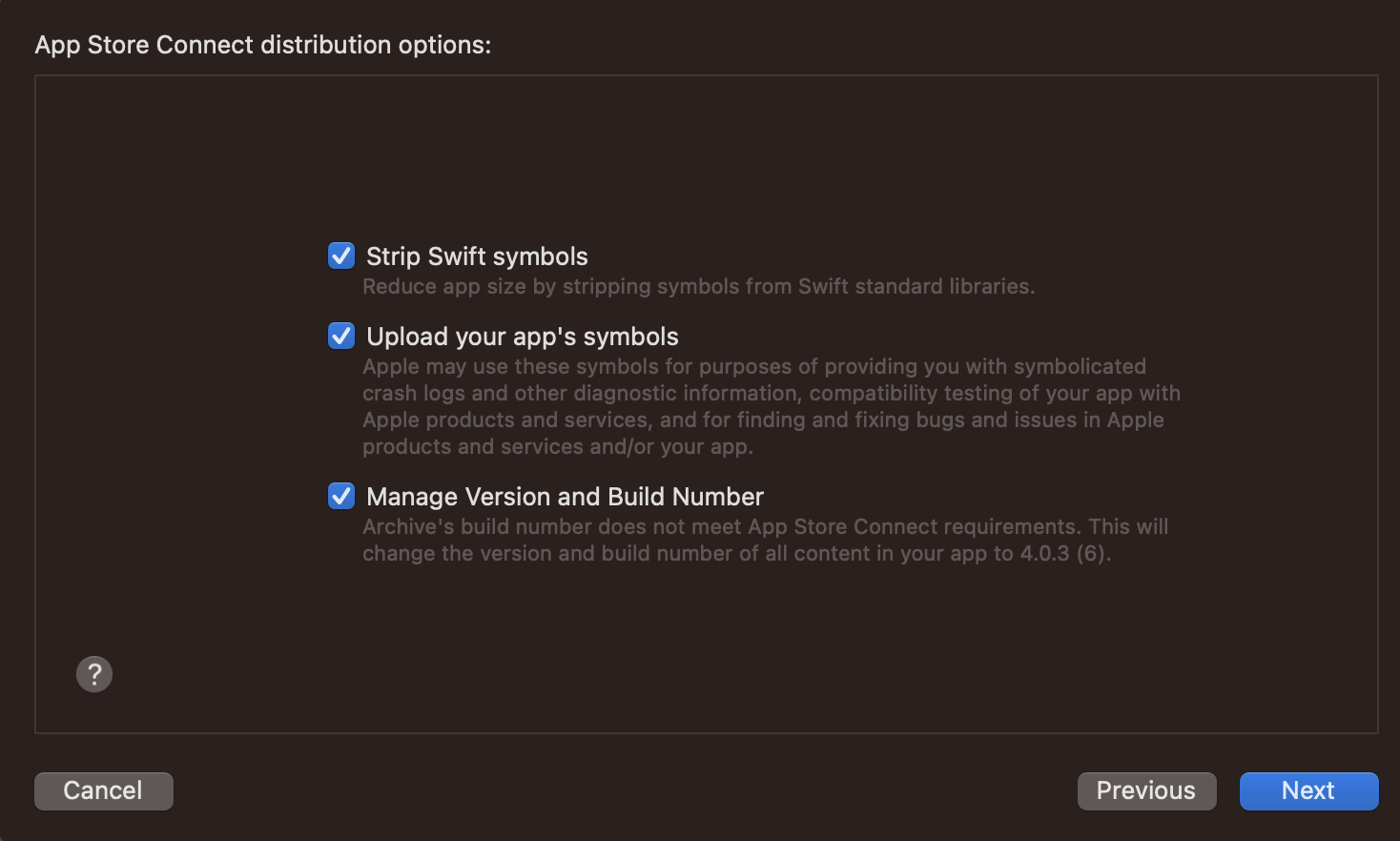 Distribution options
Step 4f - Re-sign the App
- Click "Automatically manage signing" radio button
- Click Next Button
 Re-sign App
Step 4g - Review App Content
- Click the Upload button
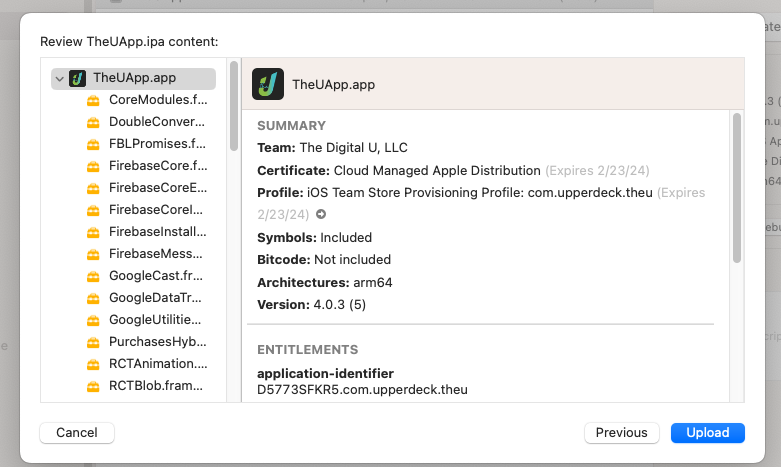 pload Review Page
When the upload is finished, you should be able to close the dialog box with the Done Button.
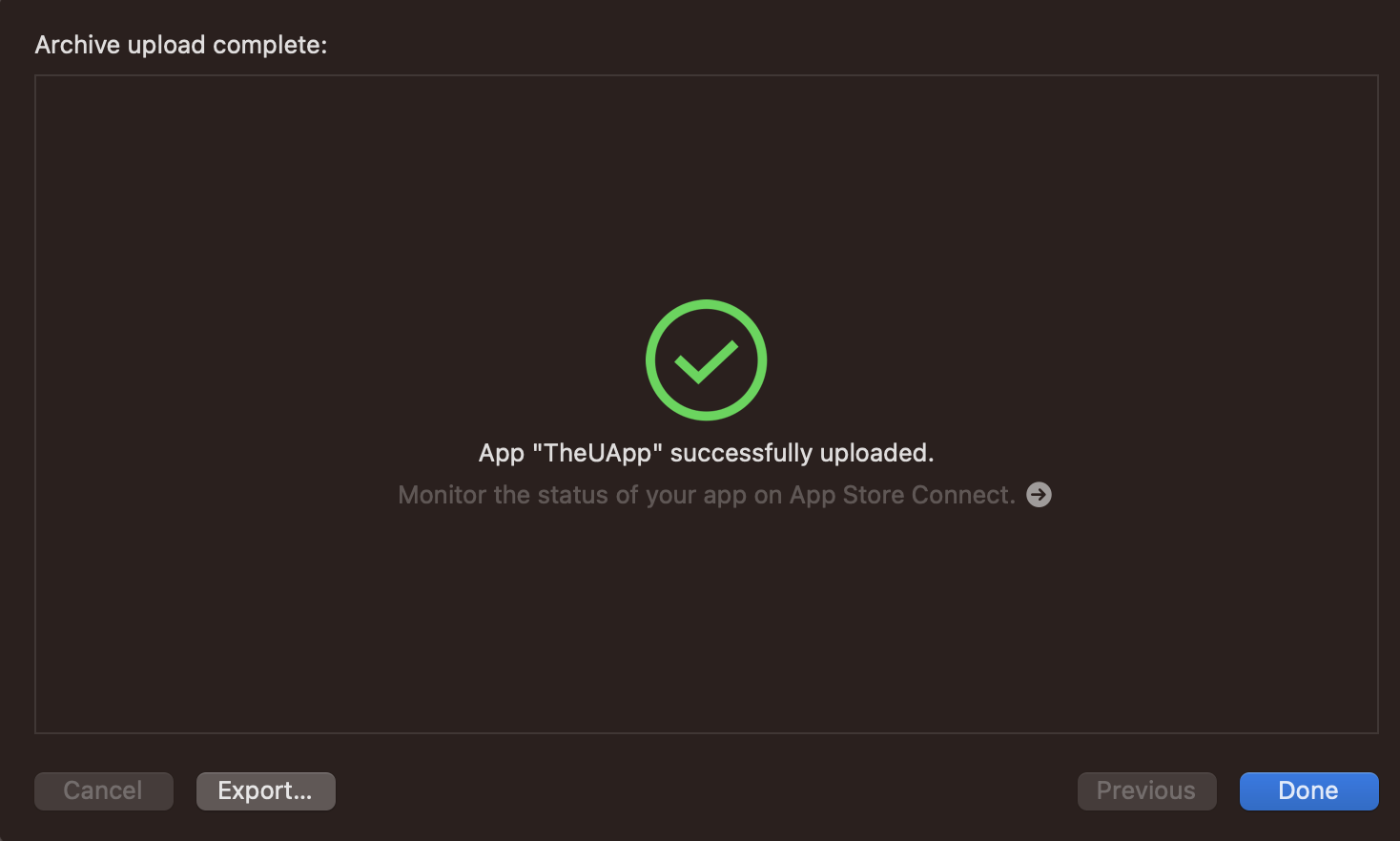 View after Upload is complete
Step 5 - Open TestFlight Tab
- Return to the App Store Connect tab and navigate to "TestFlight"
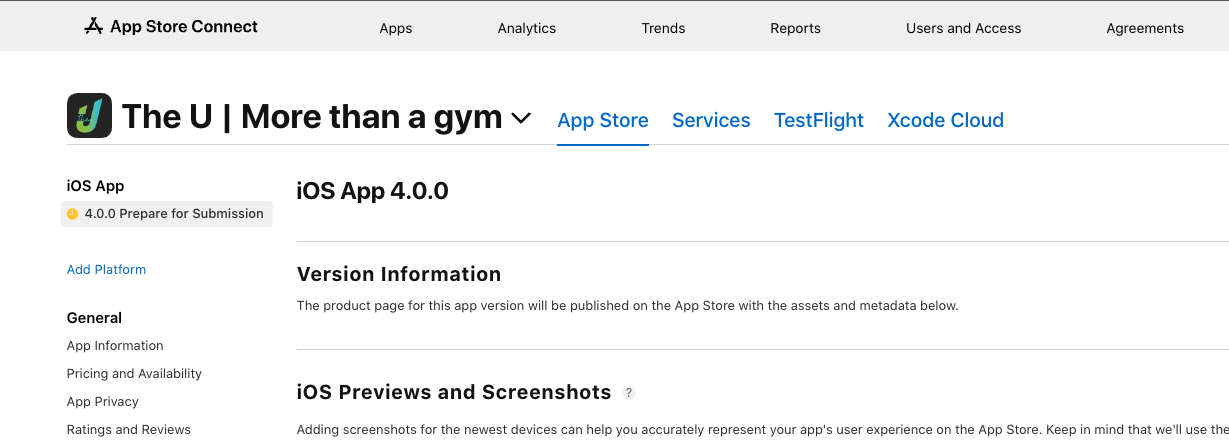
- Find the latest Version ( the version you just pushed )
- At this point, you may need to wait about 20 minuets to see expandable options under the version. Nothing to do? Watch a video on how the Event Loop works in Javascript!
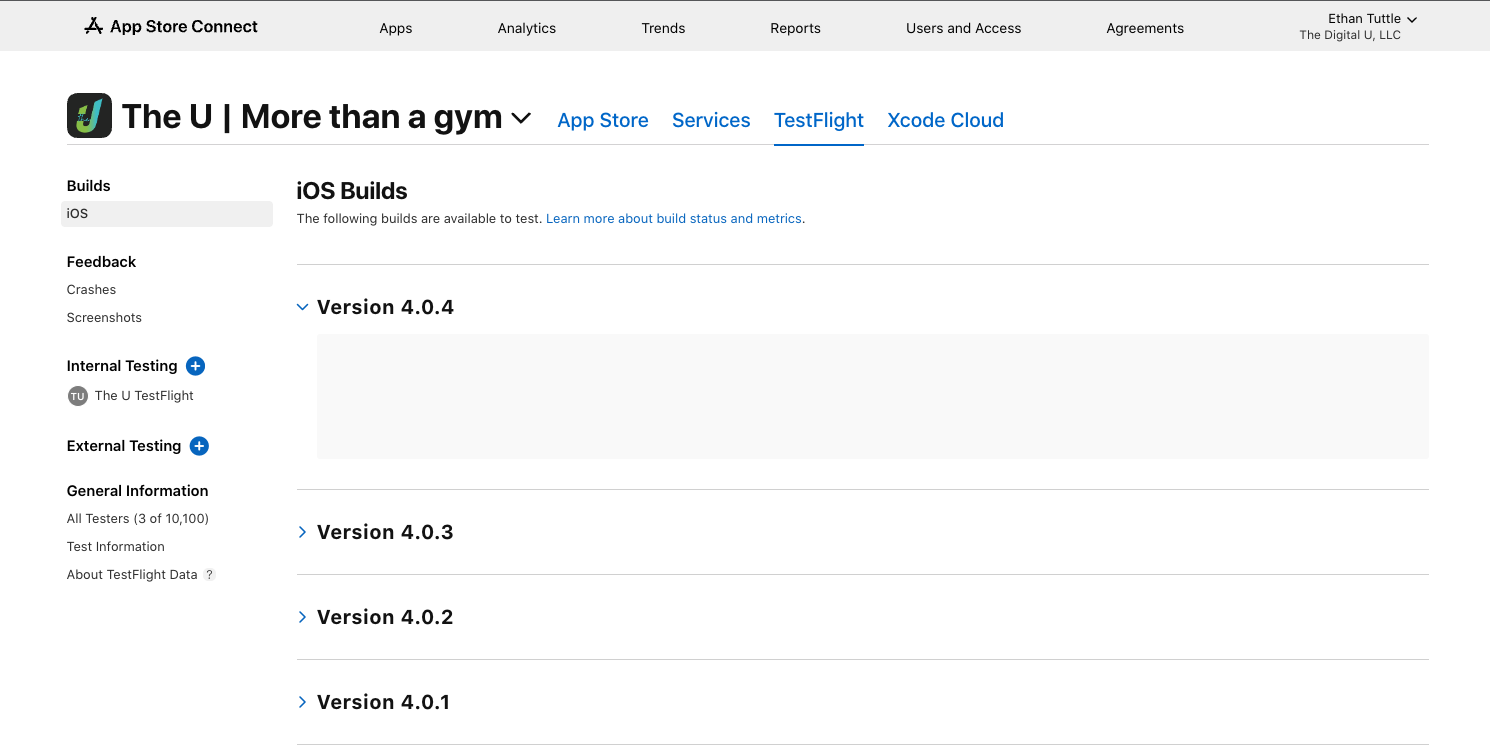 Version Loading View
- Reload the page after about 20 minuets
- If it's still loading, you will see a the following view.
- Refresh page until view contains "Missing Compliance Manage"
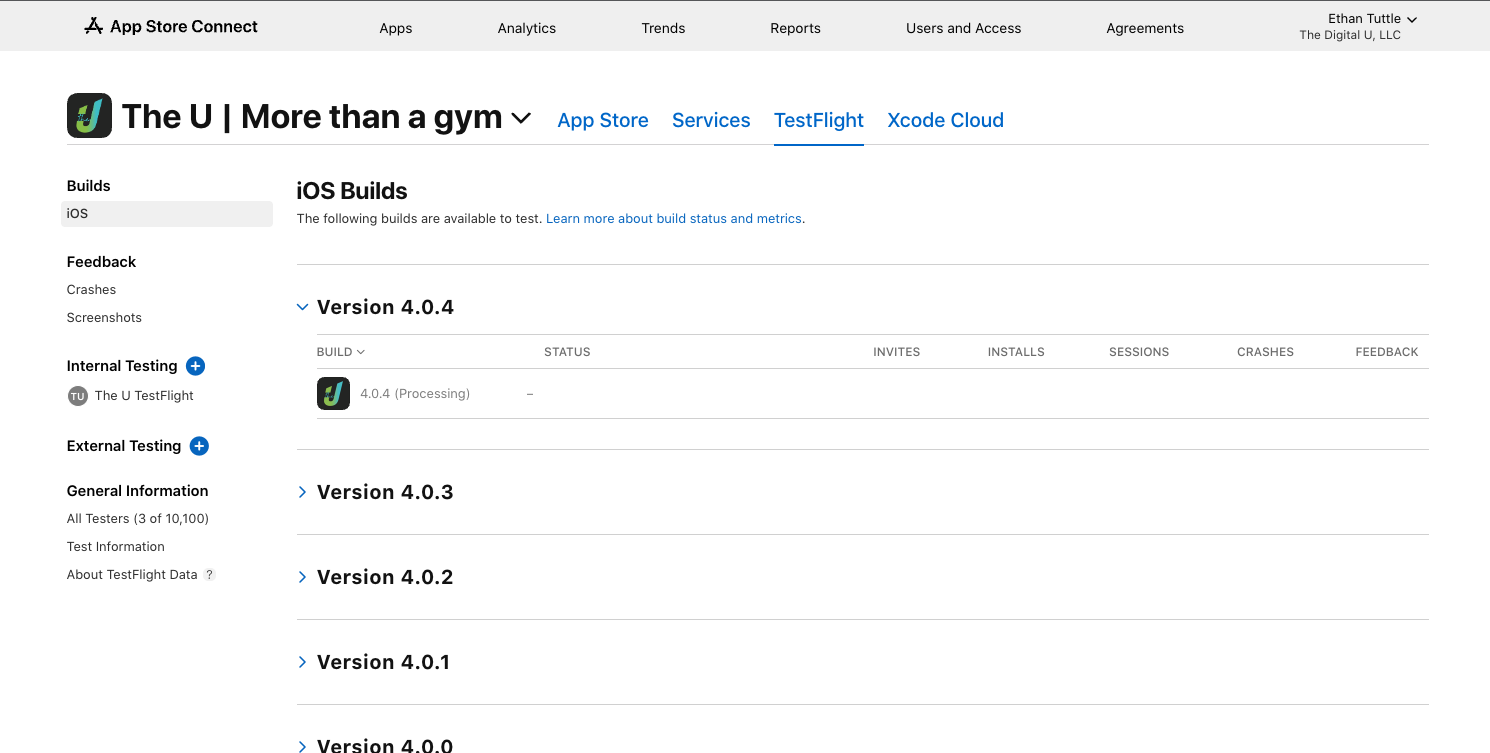 Still Processing view
- Select the Manage link in "Missing Compliance Manage"
 Missing Compliance "Manage" View
Step 6 - Compliance Configuration
- Select "Standard encryption algorithms instead of, or in addition to, using or accessing the encryption within Apple's operating system" Radio button
- Click Next Button
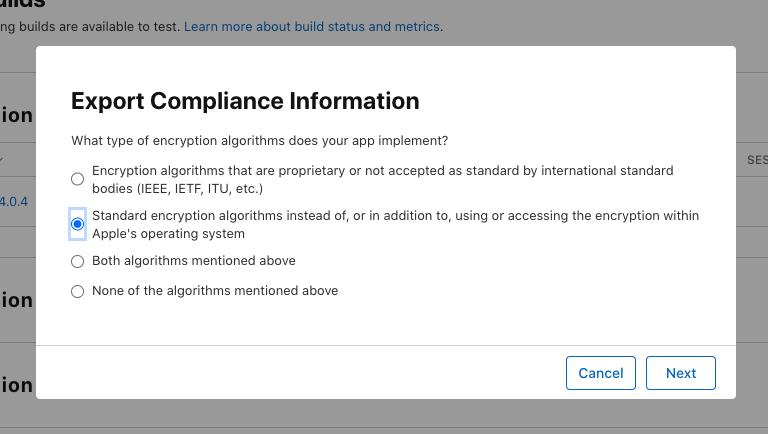 Export Compliance Information Dialog
Step 6a - France Publishing
- Select "No" Radio Button since app will not be released in France
- Click Save Button
-c1edc5a60b6587b5c14a981eeb4b91d5.png) France Dialog View
France Dialog View
Step 7 - You're finished!
- Congratulations! You have successfully deployed the latest version of the app.