Welcome Gift Automation
Workflow
User adds specific discount code to get the free gift at checkout. This triggers the free gift to be added to their cart when SIGNED IN. If not signed in, the discount code will be rejected.
We also made it so a user cannot just checkout with the free gift if they remove actual products from their cart.
When an order is placed, if it has our discount product and the inventory is below 40, it will also send an internal email to inform you.
This is the current discount code we set up in Shopify: https://joannaczech.myshopify.com/admin/discounts/1055396462615
If you want to change the name of the discount code, either rename this discount or set up a new one with the same requirements.
FREE GIFT PRODUCT CONFIGURATION NOTES:
- Must be set to at least $1.00, not $0.00 - the discount code marks it as 100% off so when you set the free product as $0, it comes up with an error message on checkout saying the discount is not valid.
- The free gift product MUST have an image associated with it. If the product does not have an image, it breaks the whole site. We found this out while doing this update. That is why we added that random image to the Mini Balm product.
Settings
If you want to change the free gift product OR the discount code, we made settings in the theme customizer for you to easily change.
In the theme customizer, click on the theme settings (paint brush icon)
You will see a section called FREE WELCOME GIFT SETTINGS

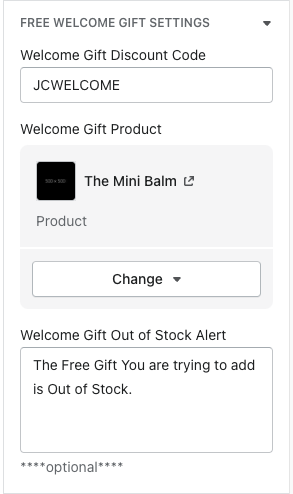
Discount code text field - if the discount code needs to be changed, just enter it like you did in the admin when creating the discount.
Welcome gift product - select the product in the product selector of the new product you want to offer as the free gift
Welcome gift out of stock alert - this message is what appears to the user if the free gift so happens to be out of stock. You can change this to whatever you would like