How to add images to the Mega Menu
- Open the Theme Customizer
- Click Header from the admin panel on the left side of the browser
-e8bb8c515b6b081a6f1246586a85c0a3.bin)
- Add additional content blocks to the Header menu by clicking on the Add content dropdown link
-9504ab75fab1a9b408fa2cb77bfe7c81.bin)
- Mega navigation or Multi-column single menu
- To add images to an existing menu, select a Mega menu content block from the list.
-faa94eda722898c13e854ba88ab65887.bin)
- Scroll down and you'll see custom image 1, custom image 2, custom image 3, and custom image 4.
-8b9dc520663f8815c868e3680783032f.bin)
Image - Content Block - Slideshow
- Theme setting
-c7850f19f93f0ec8047649b36e7e2161.bin)
- Slideshow content block
- Desktop & Mobile images
-c348acad655df982b46a77944e18d4c2.bin)
- Customize the color and alignment of the Header & Subheader slider text
-5b9d3c89186dc9c000f3db68d303f7f5.bin)
- Customize button text/color/links and slideshow image overlay

Content block - Highlights Banner
-4e177ab0b48daf99fb818a37e500235e.bin)
Image - Content block - Mosaic
-bba5325361d233f57861946f098b90df.bin)
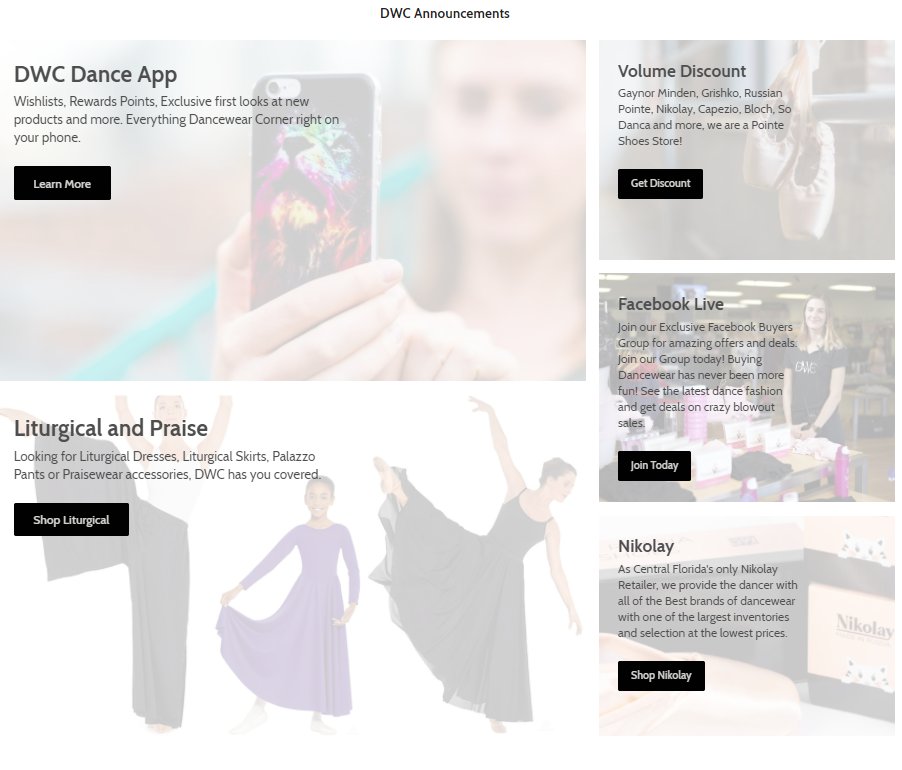
- Section looks like
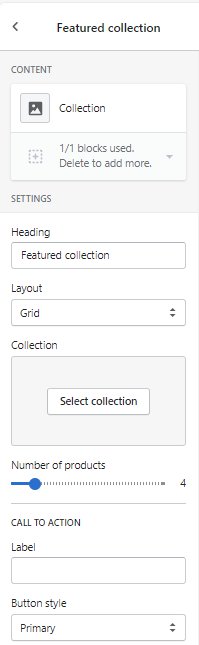
Content block - Featured Collection

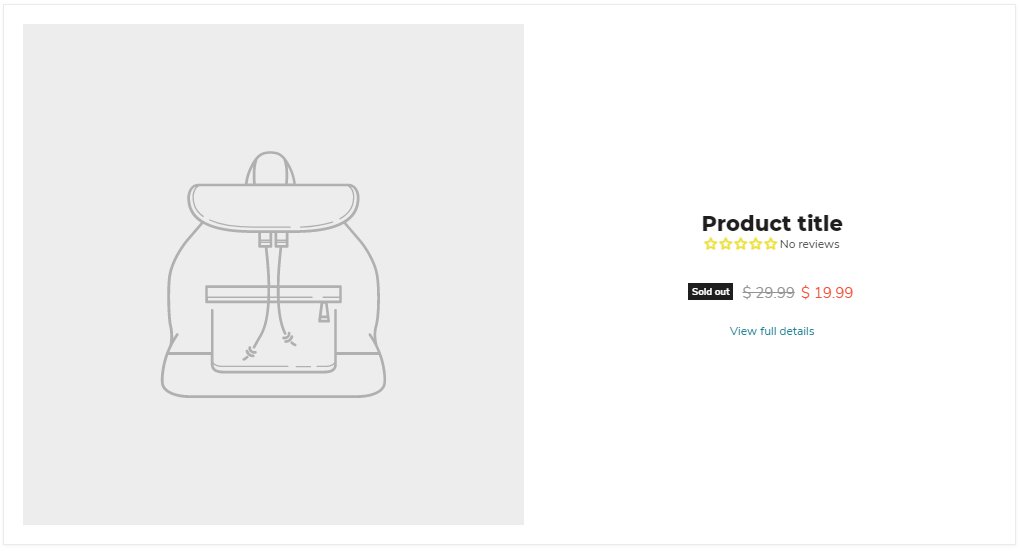
- Content block - Featured Product

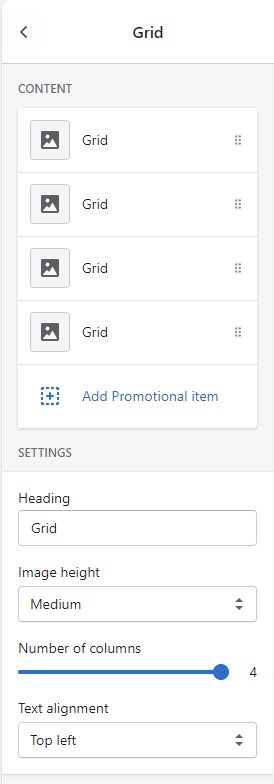
- Image - Content block - Grid
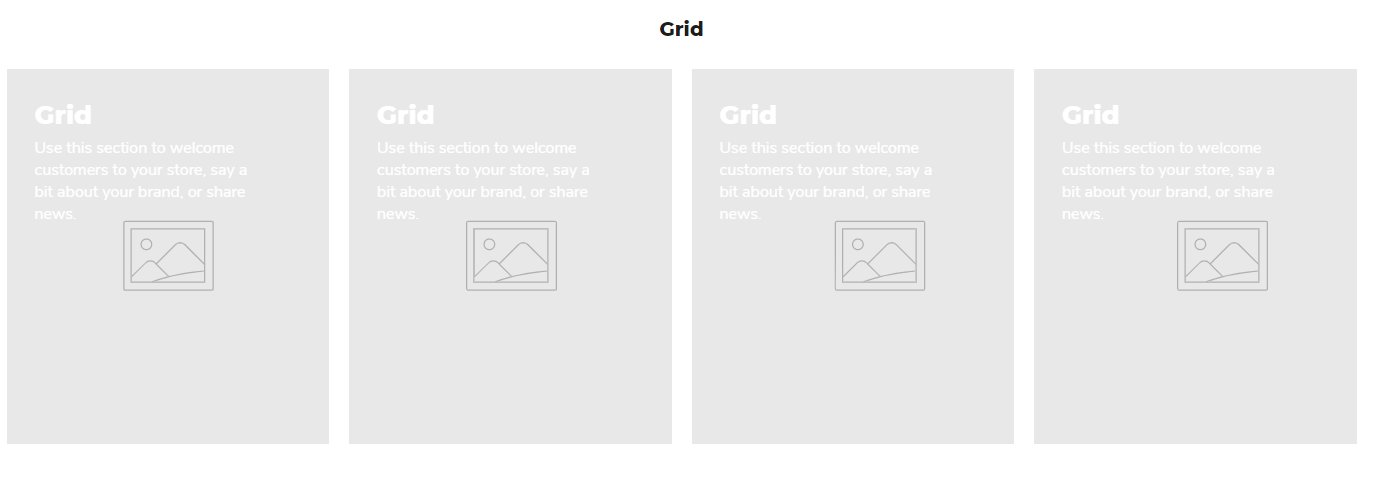
- Content block - Collection list


- Image - Content block - Shoppable Image


- Promotional - Content block - Newsletter
- Social Media - Content block - Twitter feed
- Store information - Content block - Map
- Store information - Content block - Highlights banner
- Store information - Content block - Search
- Content block - Video
- Content block - Collection
- Content block - Testimonials
- Blog - Content block - Blog posts
- Image – Content block – Image with text
- Image - Content block - Image with text overlay
- Image - Content block - Logo list
- Text - Content block - Menu list
- Text - Content block - Page
- Text - Content block - Rich text
- Footer