Video Section
New video section is called: Section Full-Width Video
Section Settings
Opacity Settings

Overlay color - Color of the overlay on the video
Opacity - Can choose how light/dark you want the opacity to be
Functionality Settings
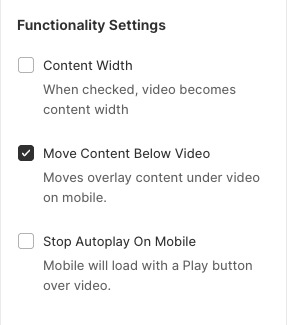
Content Width - The video becomes content width rather than full width when this setting is checked
Move content below video - Moves the text below the video on MOBILE ONLY
Stop autoplay on mobile - Gives you the option to turn autoplay off on mobile and on desktop it continues to be autoplayed. The user would have to click the play button for the video to start on mobile.
Background Settings

Content background color - When the section is set to CONTENT WIDTH, you can choose the background color of the section.
Desktop Color Settings
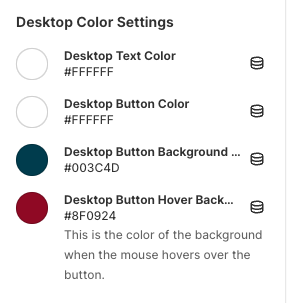
Desktop Text Color - Changes the color of the heading & subheading text
Desktop Button Color - Changes the border & text color of the button
Desktop Button Background Color - Changes the background color of the button
Desktop Button Hover Background Color - Can change the color of the hover color when you hover over the button
Mobile Color Settings
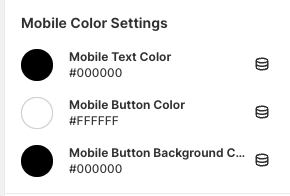
Mobile Text Color - Can change the color of the heading & subheading text specifically for mobile
Mobile Button Color - Can change the text color in the button specifically for mobile
Mobile Button Background Color - Changes the background color of the button on mobile
No mobile hover color settings since you cannot hover on a mobile device
Video Block Settings
To add a video, you have to click the ADD VIDEO Block

How to get HLS Video Link for Better Page Speed
We recommend using the Vimeo HLS Links. To get this specific link, upload the video to Vimeo. Once the video is finished uploading, click the 3 dots in the top right corner
-123ce52f3bddf6bafceb4569eea64dd1.png)
Then click VIDEO FILE LINKS
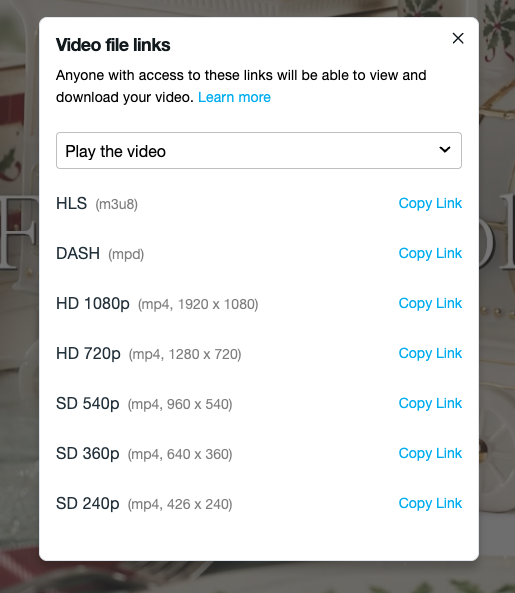
The first video file link HLS (m3u8) is the link you want to copy.
Video Configuration
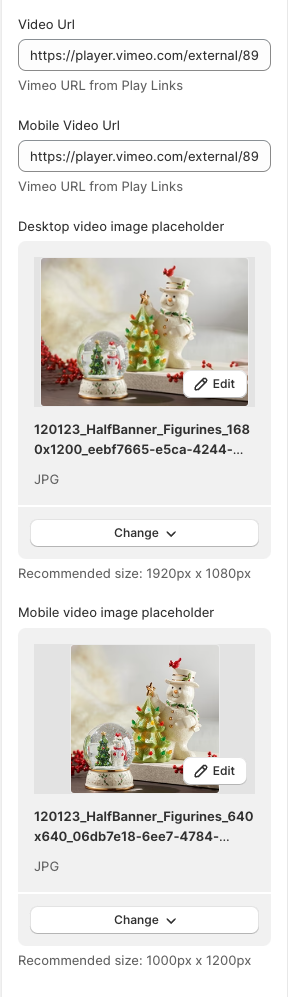
Video Url - The desktop video link
Mobile Video Url - The mobile version of the video link (if the sizing doesn't need to be different for mobile, you can upload the same link in each field)
Desktop Video Image Placeholder - The image that shows before the video loads
Mobile Video Image Placeholder - The image that shows before the video loads on mobile
Content Settings
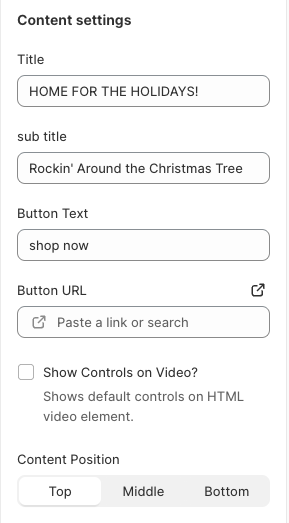
Title - The heading text
Sub title - The subheading text
Button text - The text in the button
Button URL - The link the button will bring the user
Show controls on video? - It will show the controls on the video like play, pause, mute, etc
Content position - Where the content displays on the video - top, middle, or bottom