Header Section Settings / Adding Icon Files
- Login to Shopify Admin - https://cambridge-silversmiths.myshopify.com/admin
- Click on Online Store
-fe4f98301941ef2ec91c5288e132277c.png)
- Find the theme you want to modify, them click on CUSTOMIZE
- Select HEADER
-7d02c842447d8a835d0ee21164491b35.png)
Here you can add your logo, links, images, etc
CONTENT section:
- To add content:
- Select “Add content”
- Select either ‘Menu promotion’ or ‘Megamenu item’

-
- Click on “Select image” to upload the designated image.
- Enter Link Title
- You can change, edit, or remove images:
-b40ab9eb422f98aeed537e4358c4d8be.png)
-
- You can also move the order in which they appear by clicking on the item you want moved and dragging up/down to the desired location
SETTINGS section:
- Here you can add/edit your logo, Navigation links, icons
- Logo - Edit, change/remove your logo

-
- Navigation - Edit/change your Menus. Selecting EDIT MENU will open Shopify where you can Edit or Delete Menu itmes.

-
- Icon Settings - You can select how your icons are displayed, and selecting Search Account, and Cart icon’s
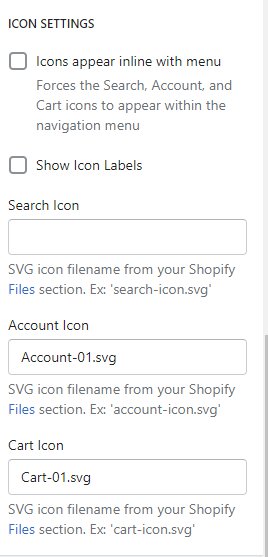
ADDING ICON FILE NAMES
- Login to Shopify Admin - https://cambridge-silversmiths.myshopify.com/admin
- Click on SETTINGS, then FILES

- Click on UPLOAD FILES

- Select the file(s) you want to upload, then select OPEN