HLS Video Section Configuration
In the theme customizer, look for section called HLS Video

When you click on the HLS Video section, you will see these settings:
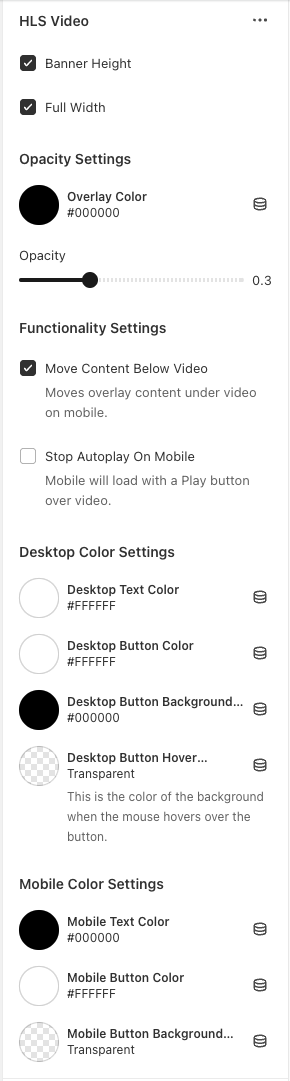
Banner height = smaller size option for the section. When unchecked, it will be a lot taller in height.
Full width = takes up the width of the screen. When unchecked, it will be content width, which is only a certain width of the screen
Opacity overlay color - can choose what color you want the overlay to be on the video so text can be visible
Opacity range = how light/dark you want the overlay color to be on the video
Move content below video - on mobile, you have the option to move the text below the video so the text isn't taking up the whole video on mobile screens.
Stop autoplay on mobile = A play button will show so the user has to click to play instead of it just autoplaying
Color Settings - you have the option to choose the color for the text on desktop & mobile for text and buttons.
To add a video, click the ADD VIDEO BLOCK
Block settings for video:
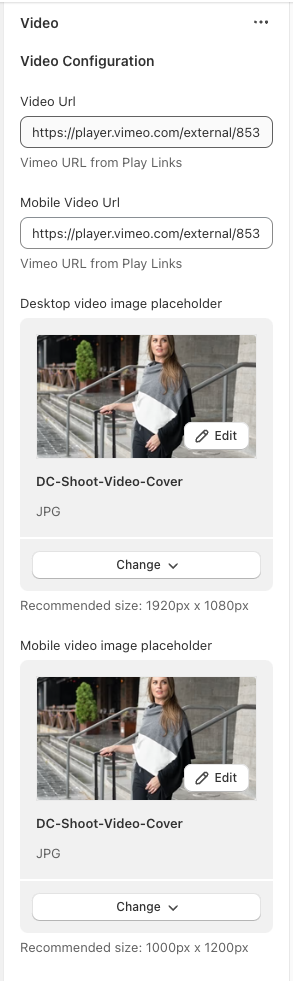
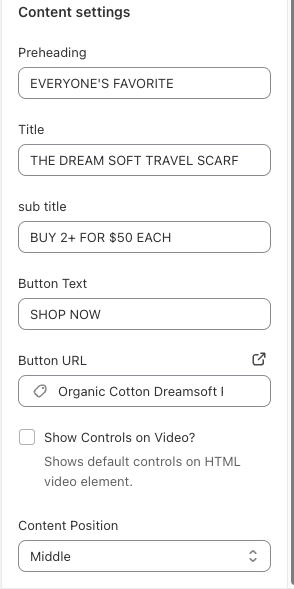
How to get correct link for video URL
You will need a vimeo account for this. (If you don't have one, feel free to send the video to Madison or Justin and we can get the link needed)
When you upload a video to your Vimeo account, once it’s done optimizing and ready, you will see this sidebar on the right
-f34fbdc55e10748e5cb6085cb19a6f76.png)
Click ADVANCED
It will bring you to a different page. On the left sidebar, click DISTRIBUTION
-6b2937d9af4ec41f2656b1285a839cd3.png)
When the options expand, click VIDEO FILE LINKS
-12f34539b7a819b39d5ea017be55a80e.png)
You will see a few different options of file links. HTTP LIVE STREAMING is the link you need to copy
-13853545043c6c2fc48ec06d19ef270b.png)