How to set up a corporate page for yoga class
How to create a page with the yoga class template:
Create a page in your admin. The title of the page can be the company name you are creating and save.
Then, in your theme customizer, go to PAGES
-a15f70d6dd59db9ec2a5833eca04607c.png)
When you click into pages, scroll down to the bottom and click CREATE TEMPLATE
-d500bc2683f08f6889d0da7856932b9f.png)
A pop up will appear like this:
-09d1bca190e973c84d3ad773aa0adcf2.png)
Name = the name of the page. so if you’re creating a yoga class page for the company Text Connects, you will write Text Connects
Based on = the page template. Here, you will select yoga-classes. The template yoga-classes will be used for all corporate pages you need to make.
Once you create that template, you will see it listed in the dropdown under PAGES in the customizer.
For the Nicolet College page (to help better reference) it will appear like this under pages. That is the new template created.
-9979304507f8c8b4e76271401a08965c.png)
Click on the template you created. On the left you will see at the top, the name of the template and “assigned to 0 pages”. Below will say PREVIEW. In the top right corner, it says “Change”. Click on CHANGE
(FYI - I am using examples from the page we had already created.)
-e6712e9b681221dc207fa24ce2482222.png)
When you click change, on the right side bar, you will be able to select the page you created in the admin to this page template. You can easily search for the name of the page in the admin or scroll through.
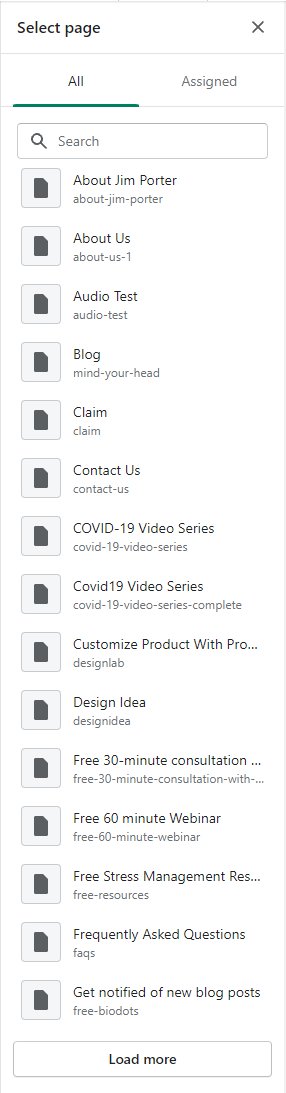
Once you find the page, select it and that page will now be assigned with the correct page template.
For example, Nicolet College

If you want to double check the page in the admin, you can.
 It shows the correct page template.
How to add the corporate email in the theme customizer
In the theme customizer, go to the corporate page you had created in the admin and assigned with the correct page template.
On the left sidebar, you will see a section called “Yoga Classes Corp”. Click on that section
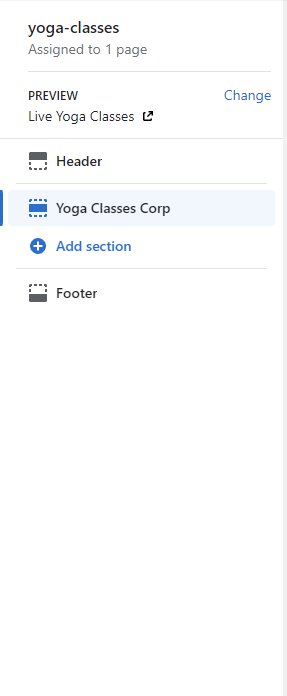
On the right side bar, you will see at the top “Corp Users Email”. Just enter the corporate’s email in the text box

Click Save
Now once you send the URL of the corporate page to the specified company, only people with that domain will be able to enter the live yoga class.
How to edit the YouTube link for the livestream video
The video needs to be setup as “allow embedding on other websites” or it will not play.
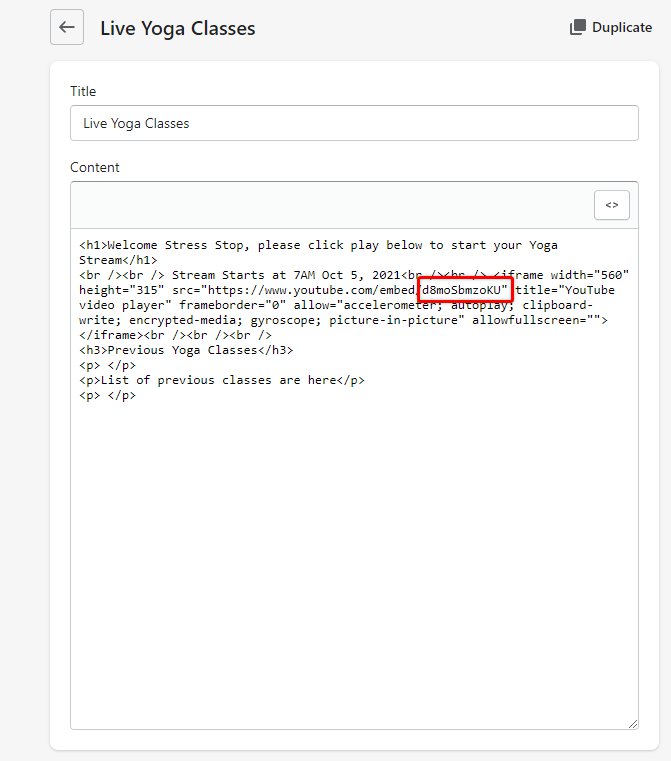
To EDIT the video, edit this page https://stressstop-com.myshopify.com/admin/pages/85190082735. This is the ONLY page you have to update the link. This will go across all corporate pages you create. Also, NOTE: the text that appears on this page will also apply across all the corporate yoga class pages. So remember to update the text on this page, not on the actual company page you create.
Click to code button
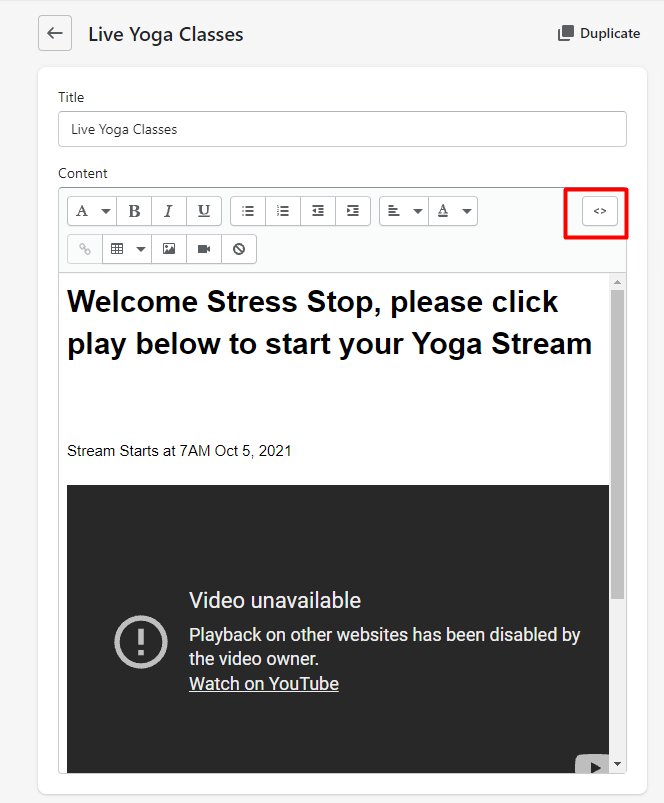
Then you will see this. The highlighted part of the URL is the only part you need to change. You will also have to change the date. You can update in the code or on the editor. To update in the editor, just click the <> button again. You can add the previous class links here too and should go across all corporate templates.