Live Streaming - YOUTUBE
- Make sure you logged into your YOUTUBE account
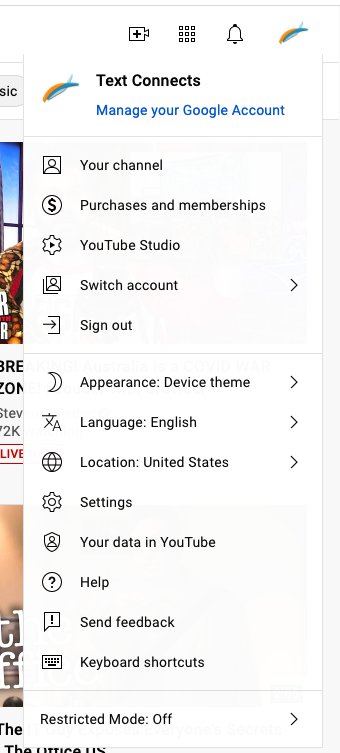
- On the top right of the site (youtube.com), make sure you click on the icon for your profile and then click on YOUTUBE STUDIO
- Once you get into YOUTUBE Studio, you can see analytics and such about your videos. You can also click on SETTINGS on the bottom left to edit any setup for your channel.
- To Go LIVE, click on the CREATE icon on the top right and then click GO LIVE

- This will bring you into the Live Stream Management portal. Click on the CAMERA Button on the left.
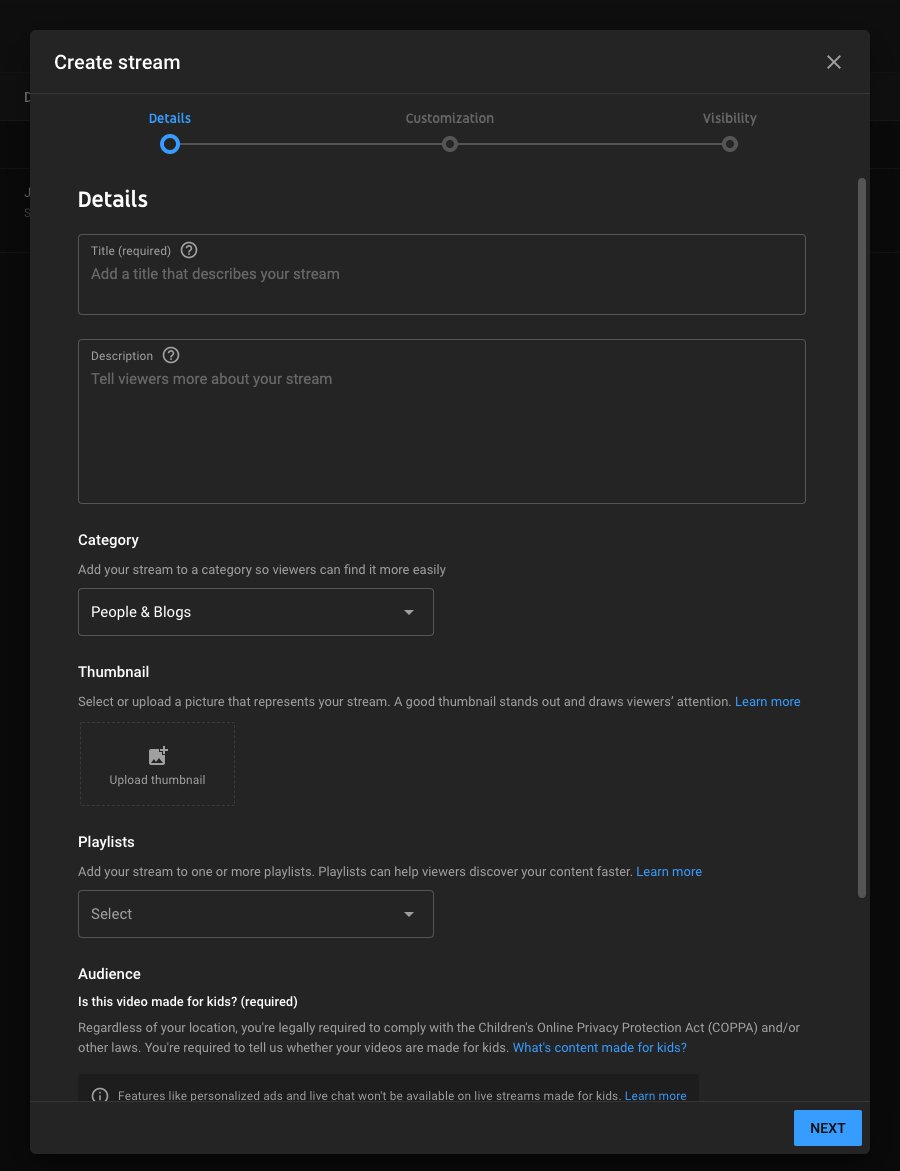
DETAILS:
Title = Stream Title - eg. Stress Stop Live Yoga
Description = Stream Description - eg. Start your day off with our relaxing Yoga Class.
Category = People & Blogs
Thumbnail - you could have an image show before the stream starts
Audience = No, its not made for kids
- Click NEXT and then uncheck LIVE CHAT
- Click NEXT
- Visibility =UNLISTED
Schedule = Define the start date/time of the stream - Click DONE
On the next page you will see your live stream details
-dbe00c94c8564a47cd32e5e0ff4f6c1f.png)
When you are ready to actually start your event, Go through steps 1-4 and then click on the scheduled listing to start the stream. Click GO LIVE when you are ready to start broadcasting
For the first few times, click on SHARE after step 9 and send the video link to Madison and Justin so we can update the website.