Quick Start Guide: Direct Container Orders
Configuring Shopify Admin
Theme Configuration
Open your theme customizer and navigate to the global settings. Under the dropdown labeled: "Direct Container Order Settings", find the setting called "Customer DC Tag". This should be a text field that will let you set a custom tag to search for on customers which makes theme eligible for Direct Container Ordering. By default, the tag will always be "Allow-DC."

How setting looks in customizer
Customer Configuration
To configure a customer for Direct Container Shipping, add the tag you set in the theme settings to the customer in the Shopify Admin ( Or during an API call to create / update contacts ).

Customer Editor In Shopify Admin
Product Configuration
On every product, there is a metafield called "Color Map". The definition for the metafiled can be found here.
Below is the schema of the Color Map JSON. The fields called "REQUIRED" are currently the only fields needed to get the system working. All other fields are optional.
INFO title="Color_Map.json" lineNumbers="true"
[
	{
		"name": “REQUIRED”,
    		"rgb": “REQUIRED”,
    		"swatch": "",
    		"abbreviation": "",
    		"nrf": "",
   		"source": "",
    		"version": "",
    		"swatch_url": "OPTIONAL_URL",
    		"color_group": "",
    		"id": "",
    		"handle": “REQUIRED”
	}
]
For configuring a product, you need to make sure that the JSON is applied to all versions of the product for everything to work correctly.
- Example: Let’s say I have the Nikki Planter in 5 colors. Each Nikki Planter product would need the exact same color map array.

Example JSON on a Live Product
INFO NOTE: This will likely become an automated process with the api but that process does not exist at the moment.
Viewing The Results of configuration
Once things have been configured in the Shopify Admin, you should be able to see some adjustments to the UI / behavior on the website.
General
- Order type is only changeable when you are logged in on a valid account. It defaults to Wholesale ordering otherwise
- When you first land on the site while logged into a valid account, a modal with ordering type will show up to let you select the default state. Closing will default to “Wholesale”
-65880fcbd8bb8637497fc3054525f6fa.png)
Modal UI
Cart Page
- The cart page will have a button that says change order type. Clicking it will open same default modal we had earlier. Selecting an option will clear your cart. Closing will do nothing. This will also force the site to reload to apply settings

Change Order Type Button
- When Items are added to the cart, you will now see a direct container progress bar. This will show how close you are to filling a 40 ft container. $12500 is the middle. $25000 is full.

- Next you will see a new dropdown called priority. This will determine the priority order in the crate. Options include Priority (A), Important (B), Nice To Have (C). After the priority is change, the button is disabled, the new priority is set and the cart will reload.
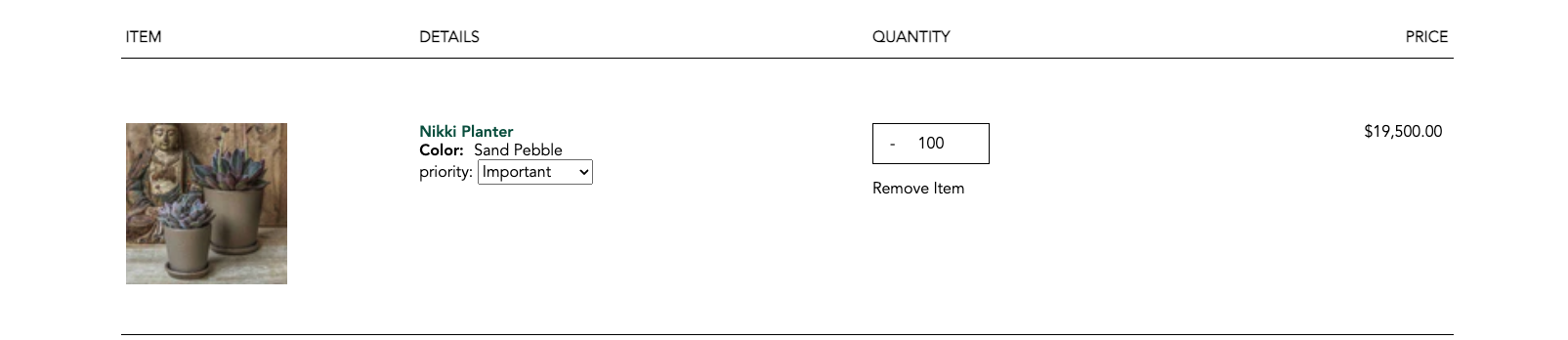
Line Item View - Cart Page
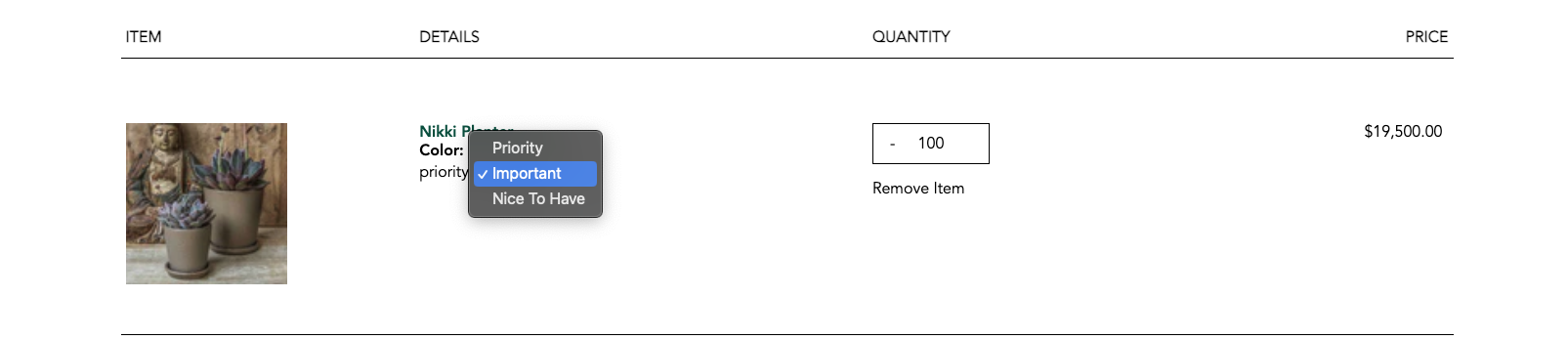
Line Item View [Dropdown expanded] - Cart Page
Product Display Page
- When the Customer is tagged with ‘Allow-DC’ and the product is tagged with DC_ITEM:Yes OR WH_ITEM:No / WH_ITEM:N, we will allow the customer to view that product. If the customer does not have the proper tag and that product has the tags, the page will show a 404 error.

PDP - 404 Error when tags conditions are not met
- If the metafield for the color map is filled out, after the normal product options, you will now see the DC product options.
- The Choose Colors option will redirect you to the related PDP without a page refresh and load in any of that page’s info
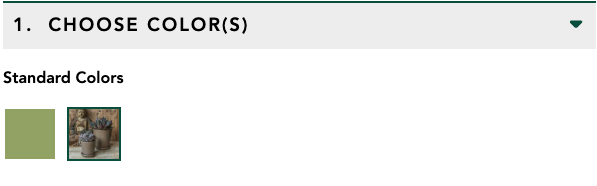
Example Color Options UI
- Layer qty and Total # of sets are linked together. Changing one will always change the other. The top one will always iterate by 1. The bottom one will iterate by the order_inc metafield value. Defaults to 1 if blank or set to 0.
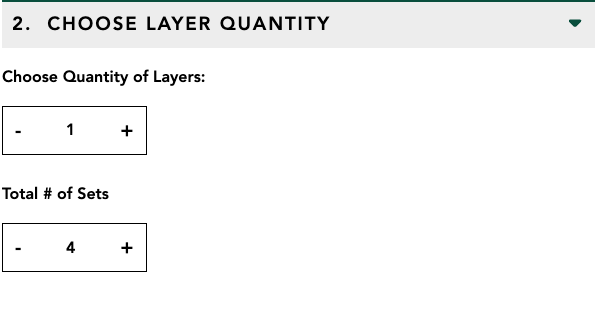
Example Layer Quantity UI