Google Business SSO Setup

Google Business SSO Setup

  1. Login to your Google Admin Account - https://admin.google.com/ac/home?hl=en
  2. Click on APPS
  3. Click on Web and Mobile Apps
  4. Select Add App, then Add Custom SAML App

  1. Give the app a unique name, we suggest MyStressTool
  2. Click Continue
  3. You will be presented with a Metadata selection - you can click Download, but it is better to send each element to us separately (including downloading the certificate file)

  1. SSO Url / Entity ID / Certificate are all required for us to configure your SSO instance
  2. Hit Continue
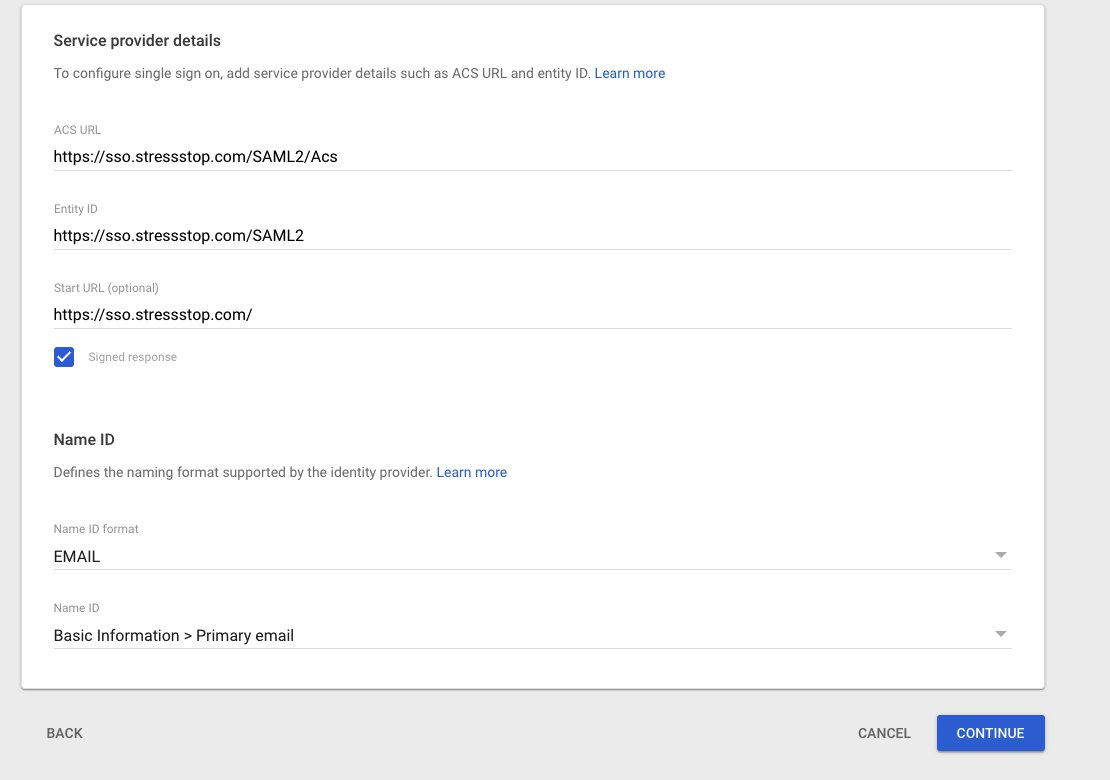
  3. Enter the following:
    ACS Url: https://sso.stressstop.com/SAML2/Acs
    Entity ID: https://sso.stressstop.com/SAML2
    Start URL : https://sso.stressstop.com/
    Signed Response: Checked
    Name ID Format: EMAIL
    Name ID: Basic Information > Primary Email
  4. Hit Continue

  1. Add a few attributes to make your user's experience a little more customized. (Note, this step is optional).

  1. Click FINISH
  2. Send ALL the details from step 7/8 to [email protected]
  3. Once we have setup everything on our end, you will able to click on the 9 dots on the top right of your users page and scroll to the bottom to select the SSO option name from step 5.