Homepage Configuration
Slideshow Section
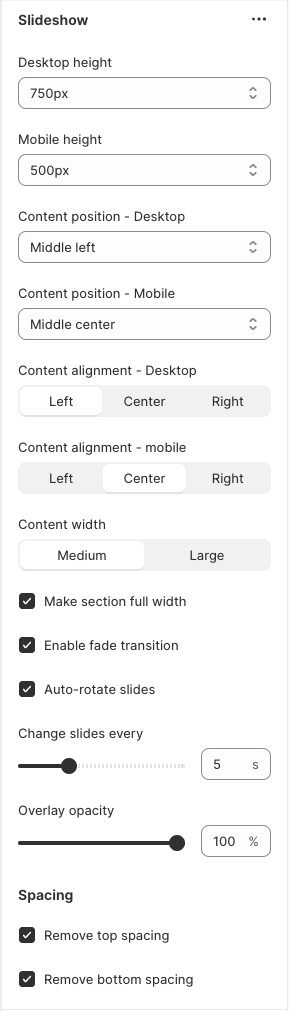
Desktop Height = Can change the height of the image to be either shorter or taller - all depends on how much you want the image to take up of the screen (meaning content getting pushed down)
Mobile Height = Same as the desktop setting above
Content Position = Can change the placement of where the text shows on the image - you can do this on both desktop & mobile
Content Width = Determines the width of the content on the slideshow
Make section full width = When enabled, makes the image full width instead of content width
Enable fade transition = If there is more than 1 image in the section, when transitioning to the next slide, there is a fade effect.
Auto Rotate Slides = Automatically transitions the images rather than the user clicking on an arrow
Changes slides every = Can determine how fast you want the slides to change when there is more than 1 image
Overlay opacity = There is an overlay you can apply to the image to make the text more visible on the image. The higher the number, the darker the overlay becomes.
Spacing = You can apply top and bottom spacing to the section
To add a new image, click the ADD SLIDE block.
Slide Block Settings
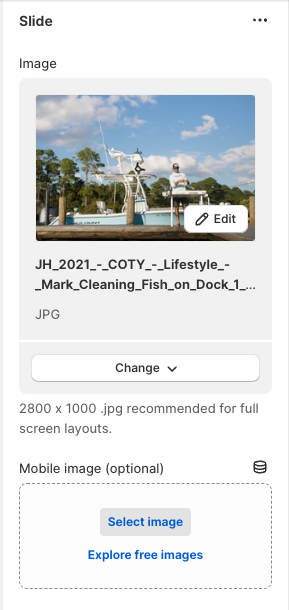
Images - You can add an image for desktop & mobile image. On mobile, we typically recommend using a more vertical image. But if there is no image specified for mobile, it defaults to what is used in the desktop image setting