How to add another delivery location
How to add another delivery location
- Log into shopify store
- Click on products in the admin panel on the left side of the page
-e339f9f30577870fe5d0154787c83afd.png)
- From the drop-down menu under Products in the admin panel click on collections

- Click Create Collection on the right side of the page

- Create new collection
-a50ec3a1a82d9a12b72fae8d2ba28d14.png)
- Change Collection template to the appropriate location

- Duplicate products for the new neighborhood collection
- Use the Bedico Creek collection to reference the list of products
- To add the duplicated products to the new collection (delivery location)
- Add tag "local_curbside_only" to the product
-
- Add tag with the name of the collection (delivery location)
- Set the vendor name to the name of the collection (delivery location)

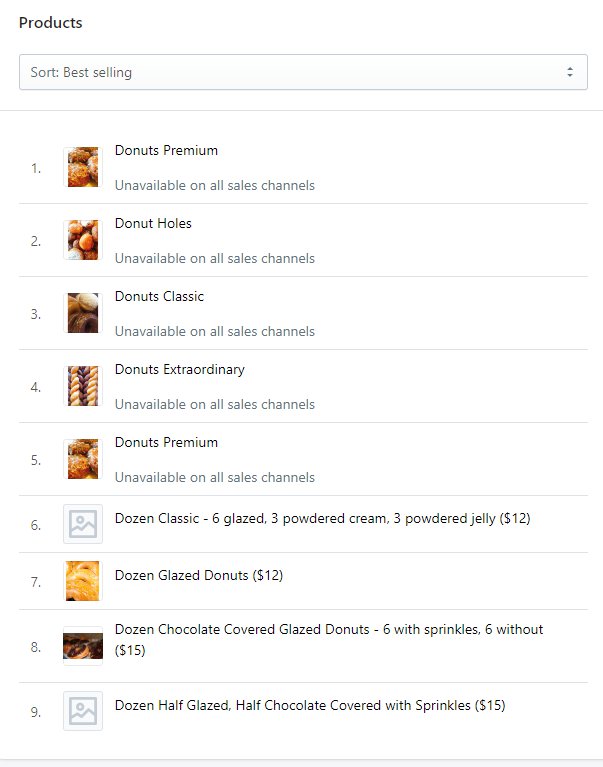
- Once all products have been duplicated and steps 7, 8, and 9 have been completed for the products. Go back to the new collection and verify that the products show up in the collection
- There should now be products in the collection like this:
Collection templates have been created and are ready for you to work with. You will need to create a new collection for each delivery neighborhood as specified in the asana task. when you create the collection, you will need to change the collection template to the corresponding neighborhood. once the collection has been created, you will need to duplicate the products for that neighborhood (use the Bedico Creek collection to see the list of products). Once the products are duplicated, you will need to add them to the collection and add the tag "local_curbside_only". Next, set the vendor to the name of the neighborhood. You will need this vendor to map to the correct shipping rate later in the parcelify app. When the products have been duplicated and configured, open Parcelify and create a new Shipping Rate with the name "Neighborhood Delivery - " with the name of the neighborhood. At the bottom of the page for the shipping rate under Filters, set the Field to Vendor Name and the verb to Equals, then enter the name of the neighborhood in the Value box.