User Guide for Extended Warranty
Overview:
Extend Warranty allows Shopify store owners to create extended warranties and replace items at customer’s requests, either by phone or submitted online. Extended warranties are a type of insurance to cover the cost of repairing or replacing products that can have defects.
When you open Extended Warranty, you will be taken to your Dashboard. Here, you will see all of the products and upsells for your store.
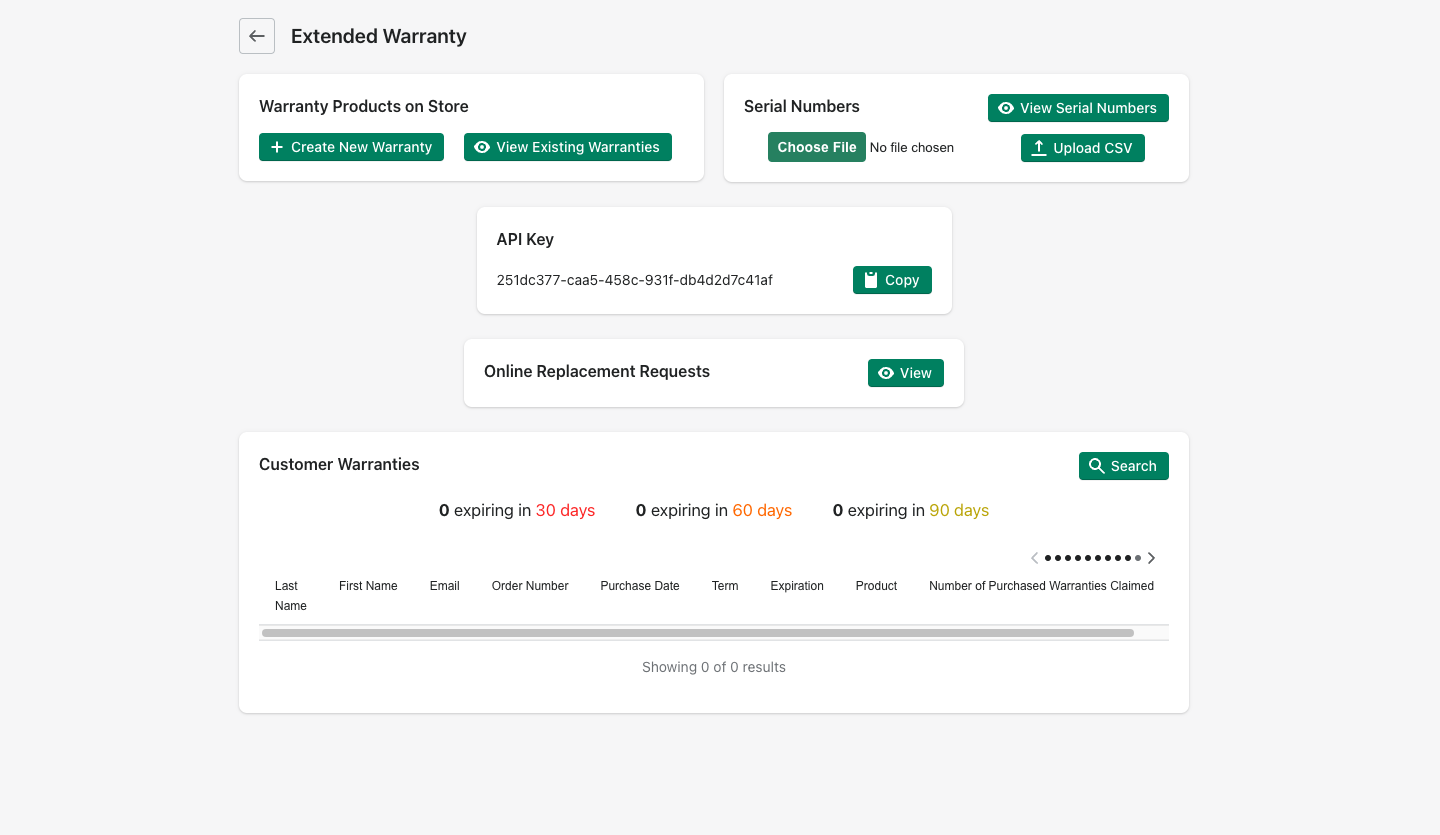
Warranty Products on Store
To create a new warranty, click “Create New Warranty”.
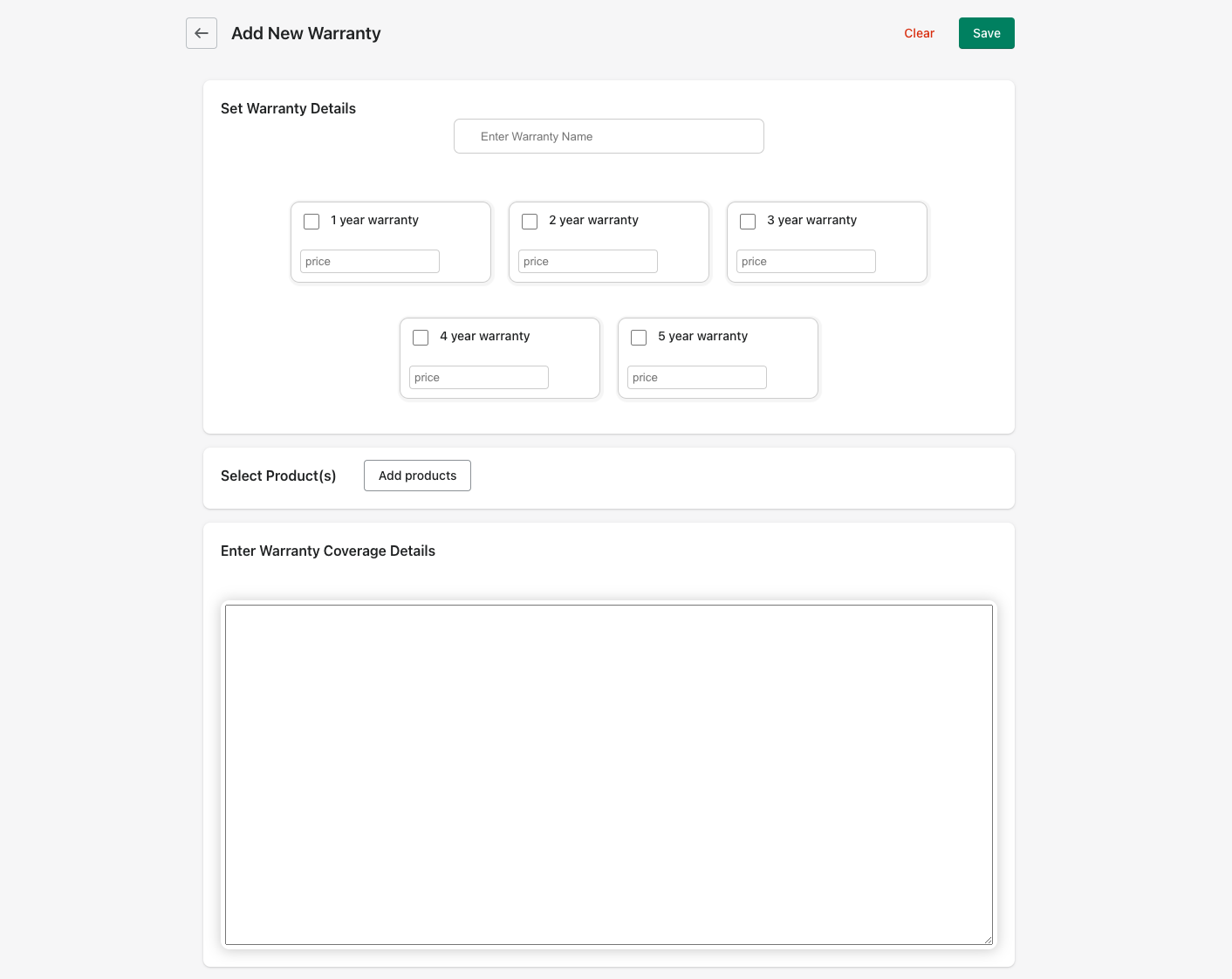
You are required to enter a name, select at least one year and enter the price, select at least one product and enter warranty coverage details. Note, prices can be whole numbers or decimals. Both 2 and 2.99 are valid.
Click Save when done.
Enter new warranty or click the back arrow at the top left to return to the Extended Warranty landing page.
To view or edit warranties, click “View Existing Warranties”.
-79fe1be0171bd669033805ff8c1e8318.png)
Each warranty is shown on its own card. The name of the warranty is displayed on the top left, each term with the set price is displayed in the boxes, and the products that have this available warranty are listed below. If you would like to edit the warranty, click “Edit” at the bottom left.
You will see the same form used in creating a warranty, with all of the current information displayed. You can change any field you would like.
Once you are finished, click “Update”. Click “Cancel” to return to the previous page without any edits.
Serial Numbers
To view serial numbers and registration information, click “View Serial Numbers”.
To upload new serial numbers, click “choose file”, select your file, and click “Upload CSV”.
Important: the file must be a .csv file and the serial number column must use the following header:
SN
-8afae57f13a921cf35d96db23ae5f64b.png)
Serial Numbers Page
All uploaded serial numbers and registration information will display in the table.
-d9f732e0d02c07b697f7c85877b17960.png)
You can search the table by customer number, serial number, or both. Or you can search by registered serial numbers and unregistered serial numbers.
-13804b7e2784410725e950e528fe221a.png)
Warranty Products on Store
Customers can claim the extended warranty by logging into their account and clicking “Submit a Claim” in the row of the order the extended warranty was purchased in.
-af8cf5e9520c8fd0204377e0691d332e.png)
The online claims appear in the online requests section of the app
To view online requests, click “View”.
If a new request has been submitted, a notification will appear on the card.
-c90d8e305c5fa2b0cdd77e59df1384a7.png)
Once you click “view”, you will be taken to this page.
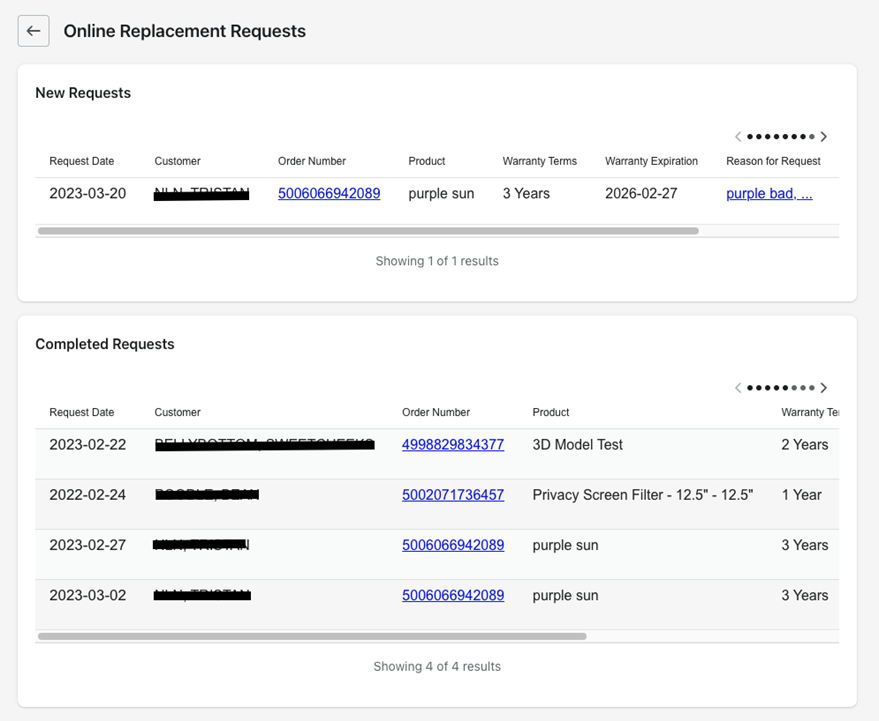
Note, any expiration date with an asterisk (*) at the end includes 6 months for registering a serial number.
-c6cc176dab1699245b27e5a17bdc4f5d.png)
This table is scrollable left and right. You are able to click on the order number to view order data, and click on the reason for request to view the entire reason or issues given by the customer.
For new requests, you are able to click “Replace” or “Deny”. Replace will create a draft order on the store and email the customer an invoice to complete the replacement. Deny will require you to enter a reason for denying. IMPORTANT: This reason will be displayed in an email notification to the customer
-ca098929e6c1876ac806bcd718f1ab23.png)
-687e0aae1de3a65151031cb58418d0bf.png)
For completed requests, you can view if the request was Denied or Approved along with the other details.
Customer Warranties
This table scrolls left and right to show all information for the order in which a warranty was purchased. If the warranty is valid, you have the ability to replace the item by clicking “Replace Item” or view if the warranty is expired or has been previously claimed.
-8b74fb6d75c7650203a6be66bf508a6a.png)
Note, any expiration date with an asterisk (*) at the end includes 6 months for registering a serial number.
You have the ability to search for an order(s). Click “Search” at the top right of the card.
You can search by order info, expiration data or completed claims.
-a9a2f0c264a617c013e1e8e675a96fa2.png)
-489605283cf9c492b00480dfcabdce41.png)
-f2dff1965aea6f171a94c422e520c8eb.png)