Cross Sell Flyout Cart
Flyout Cart
- Open theme customizer
- From the Admin panel on the left side of the page click on Flyout Cart Cross-Sell - Scroll all the way to the bottom
-0b760c9bf6fc3eea7c5f71934c5b92f1.png)
- To add products to the Flyout cart Cross Sell - Click Add Product Recommendation
-e97168a691f22fa5109e75a949a19077.png)
- The Enabled checkbox controls whether or not the products are displayed on the Flyout cart Cross Sell
-a0ecd97a84a371b69597abbf0f75cedf.png)
-
- Enabled Checkbox checked = displays products
- Enabled Checkbox unchecked = no products are displayed
- Click on the Select product button to add products
-287d2f784fab4bb745cba09b74576747.png)
- Select the product to add to the Flyout cart Cross Sell
-a047b6379f25055a5c7921291a13f138.png)
- Click the Select button - to add the products to the Flyout cart
-d62f2038d646f6aaeacff3cdd011456f.png)
- How to change the text on the Flyout cart
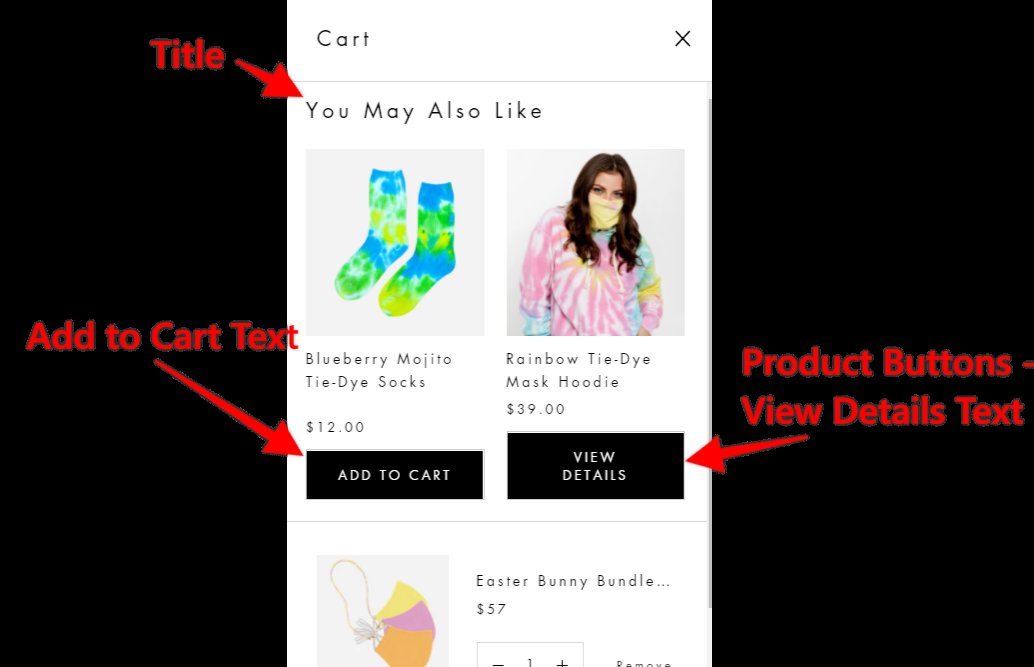
- Where the text can be changed
-04832c56c8b2b2b35db42d0610274cfd.png)
- Add to Cart - Only displays when the product has only a single variant
- View Details - Only displays when the product has multiple variants
- Products in the Cross Sell You May Also Like, display based on the order they are listed in the theme customizer
- Products that are currently unavailable are not displayed in the Flyout cart Cross Sell
- Any products in the Cross Sell product list that are also in a customer's cart will not be displayed.