How to Edit Store Locations for Store Locator
- Update this google sheet - add the location name, lat / long coordinates, address, type, geomety type, and image.
Google sheet:
https://docs.google.com/spreadsheets/d/14q64TPn11f1gPAO5Qjz7EoWz5v13iwnTd4uqKqjSHb4/edit?usp=sharing\
Make sure to add Feature and Point for every location in the spreadsheet. Basically, how it is laid out on the sheet, is how it needs to be for every location added.
You can use this tool to get the latitude and longitude coordinates: https://www.mapdevelopers.com/geocode_tool.php
2. When the sheet is done being edited, download a CSV
3. Upload to CSV file here https://www.convertcsv.com/csv-to-json.htm in Step 1
Click choose file and upload the CSV file
-6ac6d23d8512978194d89bbf3526af22.png)
Select the RESULT DATA button and copy
-ea8da5362c44565d2c3c1fffb9d4b2c9.png)
- Load the new result content into the page metafield
- Go to the Shopify admin and click on "Online Store"
- Under Online Store, click on "Pages"
- find the store locator page and open it
- Scroll down to the metafields section and click "Show All"
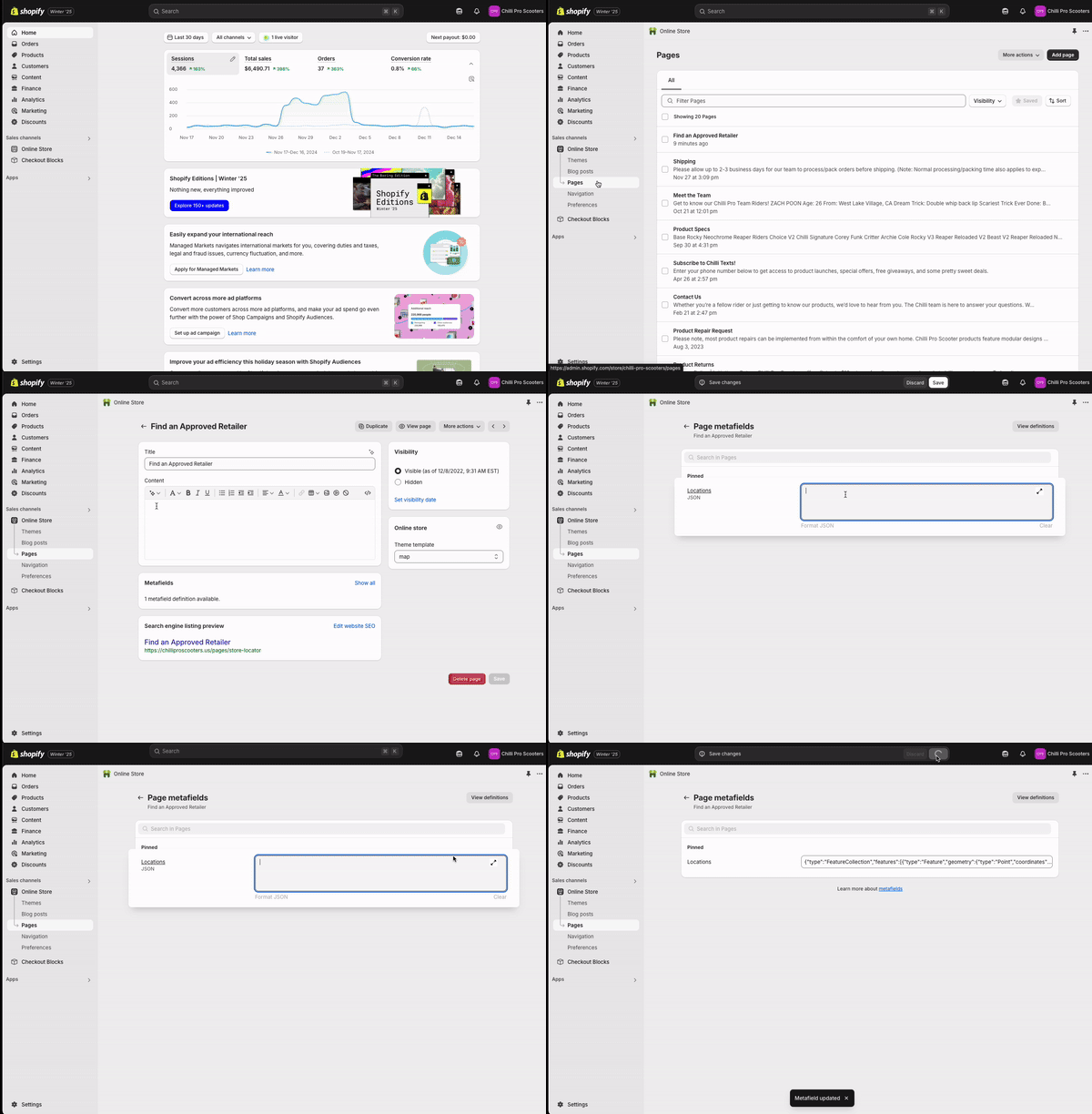
Example of updating page metafield
Highlight all of the data there, then DELETE.
Add this code is at the top (copy/paste) - like the screenshot below
{"type":"FeatureCollection","features":
INSERT CSV HERE
}
Delete the INSERT CSV HERE text and that is where you will paste the code from the csv converter website
Then, click SAVE. The locations will then update on the front end of the website.