PDP Out of Stock Message Documentation
If a product is out of stock, you can now display an out of stock message.
To access the out of stock message settings, you can go to theme settings > Product Page > Theme Settings > PDP Updates
You will see the out of stock message textbox
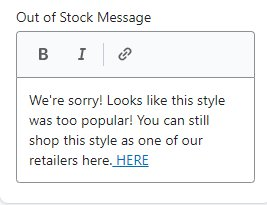
To update the link, click the CHAIN looking icon.
You can enter the text (ex. HERE) and add a link to that text. And also enable if you want the link to open in a new window
-400c0226e1fda09e4a8eac977205766b.png)
This message will be shown on the PDP above the sold out button on all products that are out of stock. It is important to know that this message will appear on ALL sold out products unless you specify a different message in the instructions below.
If you want a specific product to have a specific out of stock message, you can do so by creating a global metafield. To do this, in the admin, click on Apps > scroll down to find Metafields Custom Field Master. In the Metafields Custom Field Master Dashboard, click on products, and then click on the desired product for your message. To create the metafield, click on create metafield. Type in the info as shown in the screenshot below:
-e8535146cdcf5f185383f8b622ae2aaa.png)
Note:
Namespace MUST be “global” and Key MUST be “out-of-stock” exactly as written. In the box where it says “Type” this can be anything. If you would like to include the links like in the theme message, the TYPE will have to be Rich Text, so the links can be included as well. Once you are done, click on the green SAVE button. When the particular item is out of stock, it will show this message. If nothing is written or you delete this metafield, then it will default back to the message you wrote in the theme settings when the product is out of stock.
Click SOURCE in the top left
Instead of listing the whole URL in METAFIELDS, copy/paste the following html:
<a href="LINK URL HERE" target="_blank">LINK TEXT HERE</a>
Replace LINK URL HERE with the URL and LINK TEXT HERE with retailer name
Then click SOURCE again and it will bring you back to the metafield editor