Press Room Documentation
Press page - page template
- Open the theme customizer and go to the Press page
- Click Press Section from the Admin panel
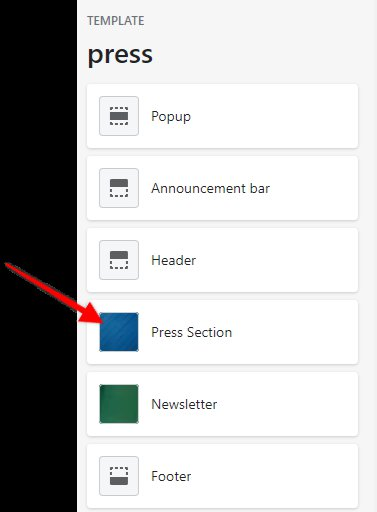
The page header image, page title, and page description are controlled via the theme customizer on the Press page.
-9b44a9549f3073bf65c6622527bacc2f.png)
Scroll to the bottom of the Admin panel to modify the Page header image, Page title, and Page description
-2c83eebe36675122e2838b92a2b04589.png)
To change the color of Press Block Tint Color and Press Block Tint Opacity, Click Press Section
-dde323394041e438b22b8b8d15466012.png)
The Press Block Tint Color and Press Block Tint Opacity is located on the Right side Admin panel
-43eb4968c99bef085f8fd67e3c86c8d3.png)
Add more content to the page by clicking on the dropdown Add content
-2955ff5c9b59227d8cb161f91514ce69.png)
There are two different content blocks on the Press page, Press item and Heading
-a0db94d916109092842e5915d2347dd1.png)
The Press item is the publication tile
-0562a9fbfd4a77e2d33d66eb7c8dafe5.png)
The Publication background image, Logo, Title, and Link are editable in the theme customizer
-2d4c7b895900b3669f52c0d8ec7dddb1.png)
-
There are two options for the Publication logo
- Image - ideally the publication logo in white text and a transparent background
- Logo Text Alternative - Text is added above the title
-
Heading content block
- The first example is just a Heading and the second is a Heading and Subheading
-7ae1181a14e309a68477265cd6114b1f.png)
You have the ability to reorder Press Items by clicking on the highlighted dots and dragging to the desired location
-3b72a15ec20bb8e42318e89f5bd6515a.png)
Be sure to click SAVE once all changes have been made